By way of introduction
It all started (for me at least) with this powerful poem sent to me by my son – who lives in Australia …
Do not go gentle into that good land,
Australia, wild and free,
Where golden sun sets on red sands,
And the ocean's voice speaks to me.

Rage, rage against the dying light,
Of the day, and the endless night,
Where the stars shine bright like fireflies,
And the kookaburra's laugh takes flight.

Do not go gentle into that good land,
Where the heat beats down like a drum,
Where the droughts are long and the wildfires grand,
And the rains come in a monsoon.

But do not despair, for in this land,
There is beauty in every plight,
The eucalyptus stands tall and grand,
And the kangaroo bounds with might.

Do not go gentle into that good land,
Australia, wild and free,
Where the spirit of the land is strong,
And the people, a part of its destiny.
Wow, I thought. I never knew he had it in him (being IT-geekish like me). It sounds like it could have been written by Dylan Thomas. He then let on …
“I asked ChatGPT to write a poem in the style of Dylan Thomas about Australia :)”.
That was on January 24th. It opened my eyes to something that was sweeping the internet and which had obviously been developing for many months, if not years. Of course I’d known about the concept of artificial intelligence, but had always imagined it in the context of driverless cars; sensors in rooms (or of any variety); clever games that you might play against, etc. etc. But here was something that seemed – on the surface at least – to have a sentient presence. Something that could think, interpret what you were saying (or writing) and return a result that – on the surface at least – made sense.
He then followed up his magnum opus with this …
Verse 1:
The world spins round, the money flows
The rich get richer, the poor get woes
We're told that we need more and more
To keep up with the Joneses, we're a corporate whore

Chorus:
Materialism, capitalism,
A never-ending cycle of greed and madness
We're slaves to the system, we're just cogs in the wheel
Materialism, capitalism, it's not real

Verse 2:
We're told that happiness comes with a price
We buy and we buy, but it's never enough
We're in a rat race, we're running on a treadmill
We're chasing the dream, but it's just a mirage

Chorus:
Materialism, capitalism,
A never-ending cycle of greed and madness
We're slaves to the system, we're just cogs in the wheel
Materialism, capitalism, it's not real

Bridge:
We're drowning in consumerism, we're losing our souls
We're sacrificing our humanity for shiny gold
We're living in a world of illusion, a world of lies
We're sacrificing our future for temporary highs

Outro:
Materialism, capitalism,
A never-ending cycle of greed and madness
We're slaves to the system, we're just cogs in the wheel
Materialism, capitalism, it's not real.
Double wow!! I knew this time it wasn’t him doing the thinking, but what was the question that the tool he was using had been asked, and what was the song based on? Any guesses?
He replied …
“The song by the way? I asked for a song about materialism and capitalism in the style of Pink Floyd.”
“How do you do that?” … I of course asked …
import socket

# Target IP address
ip = "192.168.1.1"

# Open a text file for writing the results
with open("port_scan_results.txt", "w") as f:

    # Scan for open TCP ports
    for port in range(1, 65535):
        sock = socket.socket(socket.AF_INET, socket.SOCK_STREAM)
        sock.settimeout(5)
        result = sock.connect_ex((ip, port))
        if result == 0:
            f.write("TCP Port {}: Open\n".format(port))
        sock.close()

    # Scan for open UDP ports
    for port in range(1, 65535):
        sock = socket.socket(socket.AF_INET, socket.SOCK_DGRAM)
        sock.settimeout(5)
        result = sock.connect_ex((ip, port))
        if result == 0:
            f.write("UDP Port {}: Open\n".format(port))
        sock.close()
“There you go. This is a port scanner application.” was his reply. [Please don’t ask me to explain what this is, and how to do it. As I said, he’s an IT person, and far more experienced, qualified and up-to-date than me!!]
To add insult to injury my daughter then added (this was on Signal by the way in our Family chat group) … “Do you not use ChatGPT yet dad ? I could spot the author of that poem a mile off …”
I realised then it was time for me to wake-up!
The journey starts here
I jump forward now to our u3a meeting on 23rd February when I must have mentioned something about ChatGPT. I was delighted that am a member sent me this link to a site that aims to provide you with an itinerary for you to use when visiting a place you don’t know – it’s called Roam Around. Take the time to play with it.
In between, I’d started my journey of discovery, helped a lot by the plethora of articles that had begun to emerge since the New Year.
Microsoft were building OpenAI into their search engine Bing; Google were following suit with their equivalent – Bard. [Where do they get the idea for these names from? Then again where did they get the name Google from?] Here’s a set of links to articles that I read during this time …
December 7th – ChatGPT-style tech brought to Microsoft 365 – the announcement that started the “race” with Google. [I found this one retrospectively.]
January 27th – Some Notes on AI, ChatGPT, and the Photography World – I like the really simple question, and the clear concise answer.
February 2nd – ChatGPT vs Google: Which is Better at Answering Photography Questions? – mind blowing head-to-head contest with Google being outgunned in all 10 questions. Wow, wow, wow!!!
February 2nd – How 5G and AI will work together – a techie article illustrating how the explosion of machine learning, with highly advanced technology will benefit us all in the future. I recommend a quick scan through this article to show how the two technologies working together will improve the performance of a lot of our existing systems.
February 7th – Microsoft integrates ChatGPT into its Bing & Edge products – a huge leap forward, but the early demonstration was beset with some problems. Things are moving fast!
February 10th – The Guardian view on ChatGPT search: exploiting wishful thinking – the grounded (editorial) view, reflecting that we’re a way off yet from the “Brave New World”.
February 10th – Google v Microsoft: who will win the AI chatbot race? – the expose of Google’s rush to match Microsoft’s announcement, and what may happen in the long-run.
March 12th – How to use ChatGPT on Mac – thank goodness; help at last, perhaps I’ll be able to try it out?
March 16th – AI: How ‘freaked out’ should we be? – The BBC enters the commentary on AI – it’s a good read and was worth waiting for.
March 17th – How to Get ChatGPT on Your Apple Watch – it had to happen! Chat to your watch. Beam me up Scotty!
March 17th – GPT-4 has brought a storm of hype and fright – is it marketing froth, or is this a revolution? – the cautionary note. No one should rely on this technology alone just now. Engage brain.
March 21st – Microsoft & OpenAI add AI image creation tool to Bing – we’ll be examining DALL-E in a moment, but here’s the announcement that it’s being integrated into Bing – but there’s a waiting list to get onto the Preview service! Microsoft Bing’s AI Chatbot Can Now Generate Images with DALL-E and Microsoft’s AI-Powered Bing Experience Gains Image Creation Functionality. Everything is moving so fast!
March 21st – ChatGPT watch out: You can now chat to Google Bard – not to be outdone, the Google riposte.
March 21st – Will Google’s rush to join chatbot party with launch of Bard backfire? – sober refection on whether Google is fully up-to-speed on this one, or is trying to rush-to-market.
For further links that may not appear in the list of references above, please pop-over to Thought grazing on Flipboard to see articles – some of the recent ones are about ChatGPT, OpenAI that I’ve curated there.
And so to demonstrations
The starting point has to be ChatGPT, and to use it to ask questions that will get hopefully meaningful answers, or to craft lovely poetry, songs etc. you need to create an account with OpenAI – the company that has created ChatGPT and other AI-like applications. So click on this link, and create an account from the Signup button. After you’ve provided an email address and Password, you will need to go to your email to Verify that email address and then you’re invited to provide some personal information, including a mobile phone number, to which a verification 2FA code will be sent to. Once you’ve done that you will be presented with some information screens …
… and you’re good to go …
… so give it a go.
We then tried out Roam Around for which you don’t need an account. It appears to not provide completely up-to-date information, but it’s an interesting application …
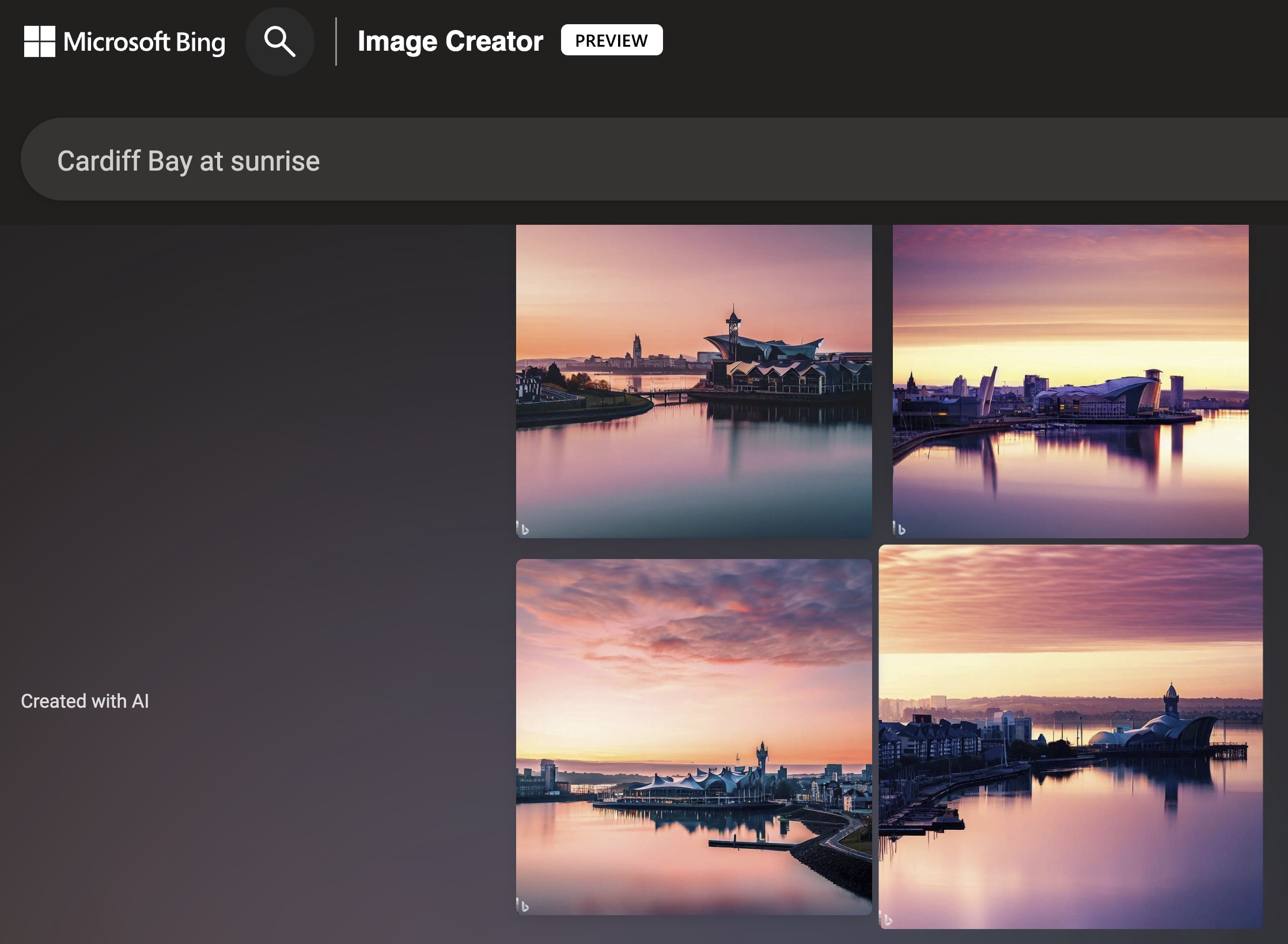
Finally, using the account we’d already setup with OpenAI, we tried DALL-E, using first the request to create an image of Cardiff Bay at sunrise …
… a surrealistic set of images which were only surpassed when we added the text “with Donald Duck present”. I leave other possibilities t to your imagination …
I also was able to use Bing in Microsoft Edge – the featured image at the top of this article shows this – to create similar images. Unlike Google/Bard; the Preview for Bing with OpenAI seems to be more readily available. You may need to download the most recent version of Edge though, and it most probably helps if you’ve got an existing Microsoft account (which I did have).