[Originally posted 20th December 2020;
Revised 12th April 2021]
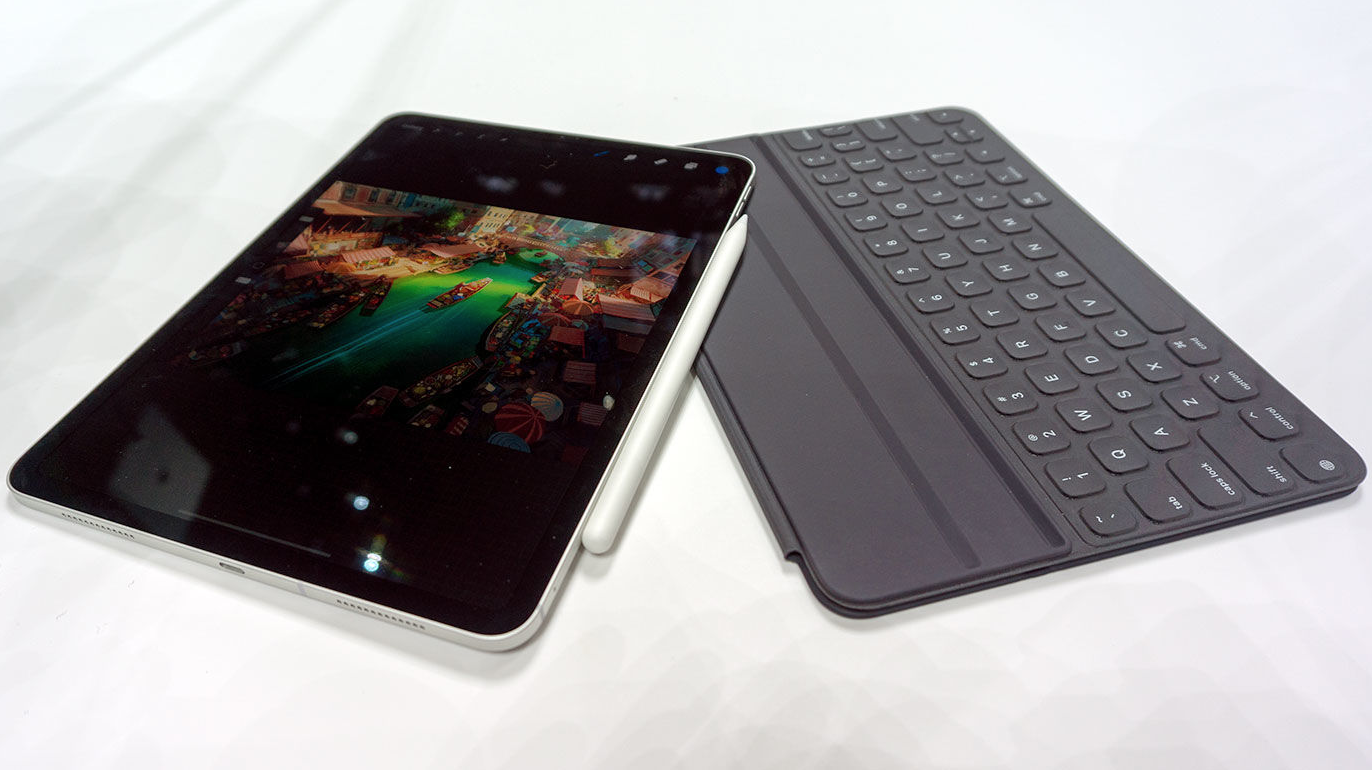
I’ve lost count of the number of posts on the subject of Workflow and Lightroom, Mobile and Classic (see links at the bottom) … and I’m still not using Lightroom (as opposed to Lightroom Classic – the desktop version)! That may, or may not, be a failing in me; it may be a failing in my understanding of whether I can actually find a place for Lightroom (the mobile cloud version) in my workflow. However, I’m determined to find out whether I’m missing out on something that might be useful, especially in the context of new Apple hardware. I’m talking now not just about the iPad Pro, but also the possibilities of benefiting from the M1 Chip in the new MacBook Air and MacBook Pro, as well as whether my iPhone 12 mini can be part of the workflow.
It occurred to me that with my MacBook Pro (mid-2012) beginning to show it’s age (trackpad failing), and with my experiments with my iPad Mini and iPhone 6s with the Lightroom app not exactly being a resounding success, that perhaps, just perhaps, technology had moved on and I would have to move on with it! When you add to this, that a native Lightroom (Lr) for the M1 Chip (to be followed later admittedly by Lightroom Classic) was to be released then I began to wonder whether I really needed Lightroom Classic (LrC) on a laptop, especially when benchmarks seemed to be showing that you didn’t need so much memory with the M1 Chip to do anything – other than for video editing. So to be “ahead of the curve” perhaps I needed to introduce Lr into my Workflow not as a replacement to LrC but as a stepping stone. So here goes … I will describe my proposed Workflow [revised 12th April 2021] as a number of Use Cases.
Importing images from my camera to Lightroom (Lr).
I could link the Sony A7rIII to Lightroom on iOS/IPadOS using wireless, or buy a cable to join the two, but to be honest it’s fiddly and as I have a Lightning to SD-Card dongle, it’s easier to just eject the card from the camera and insert it in the slot of the dongle.
I purchased the iPhone 12 mini with 256Gb RAM to allow the possibility of adding images from the camera, but also more importantly to enable the use of the Lightroom camera on the phone. We’ll deal with that Use Case later.
I need to make sure a few things are setup on my iPad – my chosen device to import photos into Lightroom (Lr).
- I’ve created an album which I’ve called Sony to Classic Sync – this is the album I’m going to later synchronise with Lightroom Classic (LrC). I don’t enable Auto Add from Camera Roll – I don’t want anything seeping into the sync process that is outside manual control. I might decide to setup Albums for a special shoot/event/trip as an alternative to this album if that seems more appropriate, but I will use this album as the default one for syncing to the cloud and on into LrC.
- I check the Cloud icon and make sure that Syncing has been Paused – again I don’t want syncing to take place until I’m ready! Having done both of these and having inserted the dongle into the iPad …
- I go to my chosen Album (see 1 above) and Select – Add Photos, and Choose – From Files (this is the source Location for the images to be imported). I will then Browse to the Named SD-Card (it may appear in the list of possible Locations as “NO NAME”).
- Click then down through the folders (eg DCIM > 100MSDCF) to get to the images and click on Select. Either click on Select All, or select individually the images you want to Import. Click on Done to start the import process. The images should appear in the Album you’ve chosen.
At this time the images have only been imported into Lightroom (Lr) on the iPad – if they are RAW images, that is what will have been imported. You can Select, Edit and Delete, add some Metadata such as Title, Caption and Keywords and Rate your images – you can’t apply Colour Labels. At this moment, the images will not have been synced to your Adobe Cloud account – that comes later!
Taking photos with my iPhone and syncing them to Lr
There are two Use Cases here. One where you are using your iPhone to just quickly take “snaps”; the other where you intend to do some post-production in Lightroom Mobile on the iPad, or after syncing to Lightroom Classic.In the first case you use the iPhone’s Camera app (which will if you’ve set things up in the right way upload the images to Apple’s iCloud, and /or Google Photos); in the second case you will use the Lr Camera rather than the iOS Camera to take the photos. Let’s deal with both cases …
Using the iOS Camera App and Camera Roll
After you’ve taken the photo it will appear in Photos your Camera Roll.
These are the settings I use to save the image to my iCloud account and to be able to see them on my other Apple devices as well …

If you want to have them uploaded to Google Photos as well, you need to open the Google Photos app, click on your icon in the top right-hand corner of the screen, and then firstly select Photos settings …

… and then enable Backup and sync from the Backup and sync screen as well as making a decision of the size of image you want uploaded, as well as whether you want to use mobile data to do the upload (I choose not to, just doing uploads when connected to WiFi).

You will now have the images accessible to you should you wish to Add photos from Camera Roll in the Lightroom Mobile app.
I have chosen to create an Album (a Collection in Lightroom Classic) which will Auto Import from Camera Roll when Sync is switched on …

… but I’ve also chosen to only Import Photos, not Screenshots or Videos – I don’t want, or need, them in Lightroom Classic …

… you should make your own decision about the RAW Default Settings.
So, if I take a photo with the iPhone Camera app it will automatically appear in the Lightroom Mobile Album – “Camera Roll to Classic Sync”.

You will notice (hopefully), that I’ve Paused Sync, so that anything added from the Camera Roll will not be Synced to Lightroom Classic.
It might be a good idea to NOT “Use Cellular Data” and to Enable “Only Download Smart Previews” – the latter is important because Smart Previews DON’T count against your Storage Quota on Adobe Cloud.

What I tend to do at this stage, or at least before I select “Resume Syncing”, is to go into the “Camera Roll to Classic Sync” album and delete the images I DON’T WANT to Sync to Lightroom Classic.
Using the Lightroom Mobile app (on iPhone or iPad)
The Lightroom camera app is much more sophisticated than the basic iPhone Camera app, so using it as a camera when you intend to include the image in your Lightroom Classic Catalog with, or without, post-processing is a Use Case you should seriously consider.
If you do this then the shots you take will appear under the Library > Lr Camera Photos menu in the Lightroom app …

… from there it’s relatively easy to …
- Go to the ellipsis icon “…” click on “Select“;
- Select the images you want to sync, and then
- Click on “Add To” which appears at the bottom of the screen when you start selecting images, and then
- Choose the Album you want to synchronise – usually in my case the one entitled “Lightroom Camera to Classic”.
You’re now ready to Sync
It’s relatively straightforward now to go to the Cloud icon and select Resume Syncing. You will see the progress of the syncing which for a lot of large RAW images can take quite a bit of time.
When the Synced and Backed Up checkbox has a tick in it – the import has finished, I will then click on Pause Syncing so that I don’t get inadvertent syncing taking place.
[NB I don’t want, or need, Adobe Cloud to provide a Backup for my images – if I’m importing from my cameraI I won’t delete anything from the SD-Cards until I’m confident I have the images I want imported into Lightroom Classic (LrC) – which has it’s own Backup arrangements.
If I’m syncing from the Camera Roll on the iPhone there will be copies in the Photos and Google Photos apps – “in the cloud”. ]
At this point you could check the synchronisation has gone to plan by starting-up Lightroom (Lr) (NOT Lightroom Classic) on your desktop/laptop. This will grab the images that are in Adobe Cloud and present them in a similar fashion to the iOS/iPadOS interface …

[NB Lightroom (Lr) can only sync with one Lightroom Classic (LrC) catalog, so you need to remember this when selecting your Catalog, or use that fact to your advantage if you don’t want to sync with Lightroom (Lr). You could do that by using different catalogs for synced and non-synced images.]
Preparing to Sync Lightroom (Lr) with Lightroom Classic (LrC)
In the same way that I want to do the upload to Adobe Cloud manually, and not have automatic syncing going on …

- I need to make sure that the “normal” setting for the Cloud icon in Lightroom Classic (LrC) is “Sync Paused” – unfortunately the Default setting is to have Sync Active.
- I need to provide Lightroom Classic (LrC) with information on what I want it to do with the images it’s going to import from Creative Cloud. You do this from the Lightroom Classic > Preferences … > Lightroom Sync page. You can see from the image below I’ve decided to Upload Images (using Lightroom Sync) to a folder on my local Google Drive, and to put them into Sub-folders by year and date …
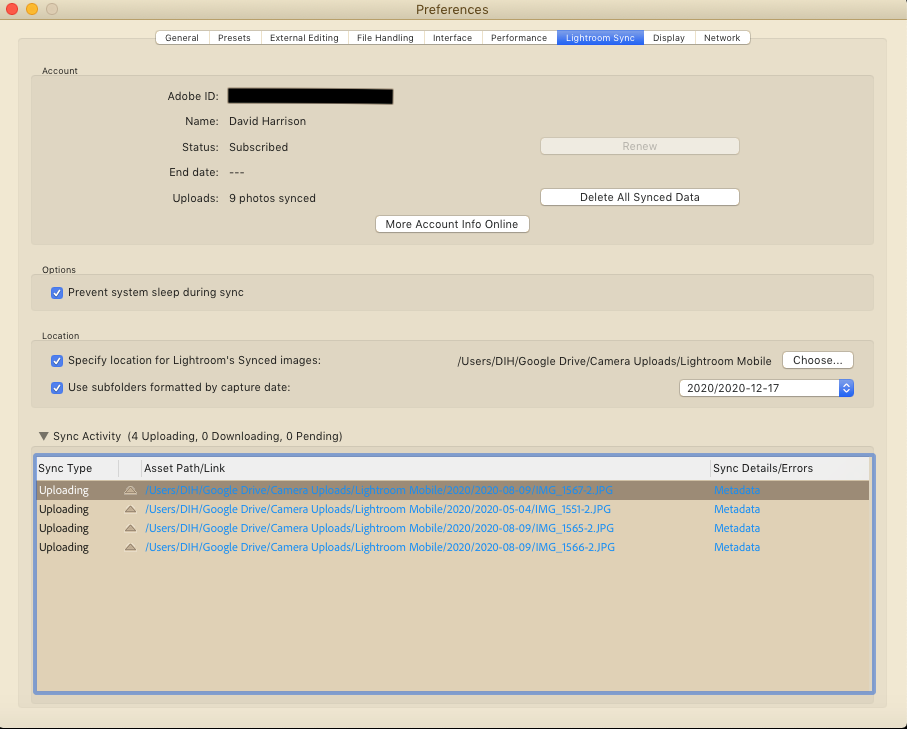
[NB Since writing this, I have changed the Specified Location to be the actual folder that I want to store the images in; hence removing the need to move the images mentioned below.]
Syncing and what happens next
Once I’m confident that I’ve got Lightroom Classic (LrC) set up and ready to receive images from Creative Cloud, I can go to the Cloud icon and click on “Resume syncing“.
The album(s) I’ve created in Creative Cloud – and this can be either those on an iOS/iPadOS device OR Lightroom (Lr) on the desktop/laptop – will now be synced to Lightroom Classic (LrC).
The Albums from Lightroom (Lr) will appear in Lightroom Classic (LrC) as Collections, and the images will appear in the folder(s) that I determined in the previous step.
I can identify the Synced Collections (Albums from Lightroom (Lr)) by clicking on the magnifying glass under the Library > Collections menu …

I can see the images have been uploaded by looking at the Folders menu …

What I need to do now is Move the Images from the folder I stipulated on the Preferences page to their permanent home in my Images dataset. This I do and can only do within Lightroom Classic – you must never do this outside Lightroom Classic (LrC) because if you do, the LrC Catalog will lose the information of where the image resides in your file structure. For example …

[NB As mentioned above, I now upload the images to the folder I want them to be in, thus meaning I don’t have to move them.]
Now that I’ve got the images where I want them in Lightroom Classic (LrC), I need to stop the Collection (Album) syncing back to Lightroom (Lr) should I do any changes to the image – which I undoubtedly would. I thus click on the two-way arrow next to the Synced Collection …

… read the warning message, and click on “Stop Syncing“. You will then notice that the two-way arrow has become a check box …

… all that remains is to delete the images from Adobe Cloud, this can be done either from the desktop/laptop application, or from the iOS/iPadOS apps. It would probably be a good idea to move these collections that had been synced to a logical place in your Collections hierarchy before the next step if you want to keep them.
Deleting the images from Adobe Cloud will release some of your valuable storage space on your mobile device but will not delete them from Lightroom Classic (LrC), only from the Synced Collections. [See article referenced below.]
You can choose to Remove the Photos from a Synced Collection, but leave them in All Synced Photographs. This will enable you to move them to a different Local Collection, should you wish – if you haven’t already moved them as I suggested a couple of paras before…


In all cases however the images won’t have been removed from their Folders in your Images dataset, only from Collections …

… and that’s about it, until I think of something else 🙂
For more information on Syncing to Adobe Cloud I suggest you look at this article and for further information on how to Remove photos from Adobe Cloud sync, I suggest looking at this article.
Other links
Lr Mobile – moving on! (March 2020)
Lightroom on the move – biting the bullet (February 2020)
Lightroom Workflow (2019) (October 2019)
Travelling with my camera and without my MacBook Pro (May 2019)
Lightroom CC (iPhone) working with Lightroom Classic CC (September 2018)