Bookmarking & browsers

At the meeting yesterday someone, I believe it could have been John, asked how you could move bookmarks from one browser to another. It’s a good question, and I’ll try and answer it below, but perhaps an alternative answer is even better and that’s what this post will also address. But first, exporting and importing bookmarks for the common browsers.

However Microsoft has been changing it’s browsers quite a bit over the past couple of years. Internet Explorer was phased out for a bespoke re-write which was called Edge; this in turn was then completely re-engineered to use the same Chromium platform as Google Chrome, Brave and others, which was called NEW Edge. Confusing eh!?

Internet Explorerread this article [Internet Explorer 11 was the default browser for Windows 10, but you may find that it’s been replaced in one of its automatic upgrades by Edge]. For all older versions of Internet Explorer including ones for versions of Windows older than Windows 10 – you might like to look at this article.

Edge – if you’ve got the NEW Edge browser rather than the old legacy EDGE version (which should still be on your machine, as should Internet Explorer 11, if you’re running Windows 10) – this is probably the easiest way of exporting your bookmarks/favourites from a Microsoft browser. Alternatively you should look to see how you can run Internet Explorer if you’ve got the OLD Edge installed on Windows 10. Then you could use the notes above for Exporting from Internet Explorer. Alternatively upgrade either of them to NEW Edge and use the first link in this paragraph to export your Favourites. Simples!

Note: Exported Microsoft Favourites (Bookmarks) are stored as .htm (HTML) files.

If you’re using Brave this article explains how you can Import and Export Bookmarks.

There must be a better way, and there is! You could use a third-party application such as Evernote, which can not only store Bookmarks, but also whole articles through the installation of a Browser Extension which allows you to “clip” content to a “note” in your Evernote datastore held in the cloud. Evernote has long been a favourite piece of software of mine and I pay an annual subscription to get an extended service from it, but there is a really good free version which you can use to trial it and see if you like it. The screen shot shows that you can save the whole article, or just part of it. [One great feature is that it only saves the article, not the additional content, sidebars, panels, etc which often hold ads.]
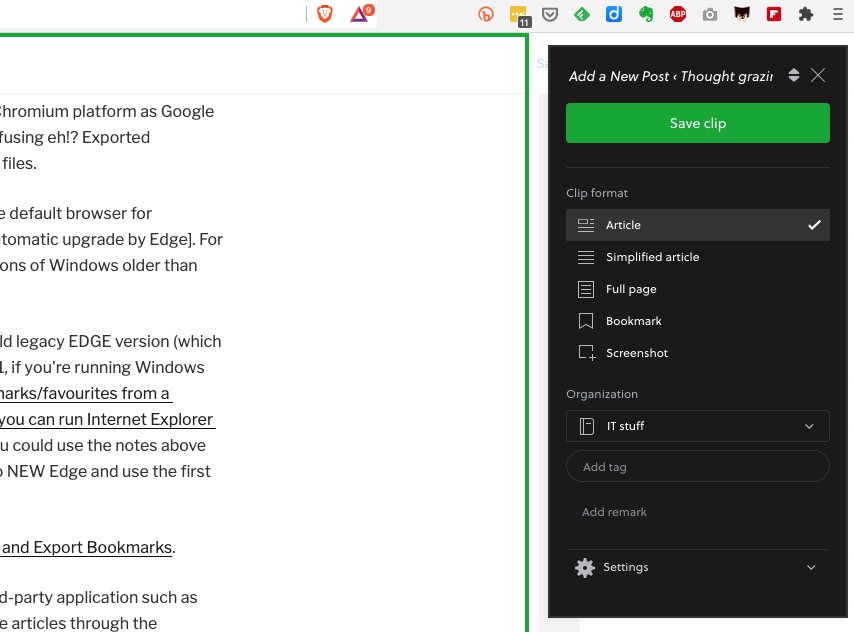
Alternatively, you could use a Bookmark Manager such as diigo. Again this sits as an extension in your Browser and every time you want to save the link to a website, you click on the diigo extension, and perhaps add some tags to help you find the site at a later date …
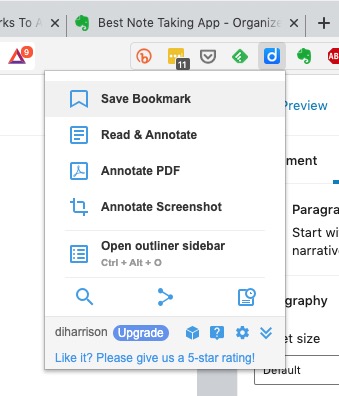
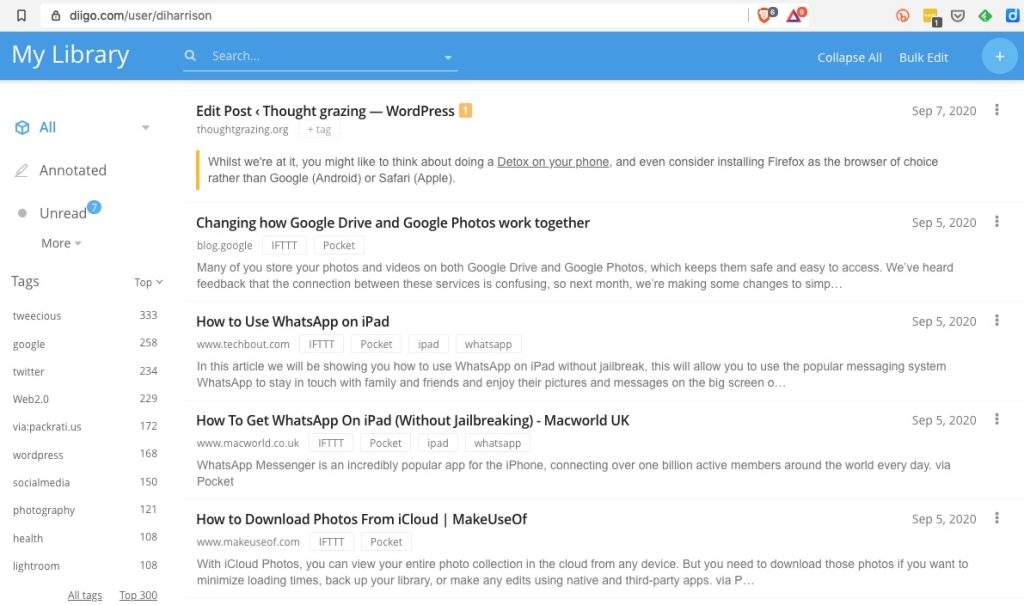
… and after pressing Save Bookmark, it saves the page with a brief excerpt …
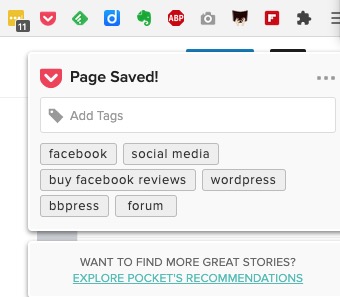
Finally there’s Pocket which combines bookmarking with a facility for offline reading of webpages. This used to be a great feature when trains didn’t have good WiFi and you could catch-up on your reading, but it’s still a very useful way of storing web content for reading away from the Internet and it’s the way I store all articles that I come across that I’m going to use in Computer Group meetings. Again, you can install a browser extension for all the major browsers that makes it very easy just to click on a webpage and it’s immediately saved and synchronised to any device that has Pocket running on it.
Looking at the bar in the browser above (Brave) you can see icons for LastPass, Pocket, Feedly, diigo, Evernote, AdBlock Plus, GoFullPage (full page screen shot), Push to Kindle, and Flipboard plus the extension to open the Extensions Library. Of course the screen shots for an Android or iOS device would be different; these are just taken from a browser running on a desktop or laptop.

Extensions are really neat, BUT only install ones from the Extensions Library of your Browser. Generally Chrome Extensions will work in Brave. That’s probably a topic for another post at some later date.

Organising and tidying-up – Part 1 – 6 Dec 2018

Boot-up
We had a lively discussion at which members raised issues connected to their network falling-out; possible reasons why this might be – for example clashing with a neighbour’s network; solid walls in old houses – but felt that this sounded like a hardware, or CONFIGURATION problem that only the ISP (Internet Service Provider) could fix with an engineer’s visit.
I mentioned my problems with upgrading an iMac and how I decided – having looked at the work involved – that I should take it to Neil’s workshop … We will fix your PC. [Update: I’ve just spoken to him and he’s explained the risk in doing the job and that of course that risk needs to be passed on to me, so I’m going to have to think about it!]
We also through the meeting talked about browsers and search engines. I referred you to the post I wrote a few weeks back – “Just Google it …” – I’ve also researched a couple of sources for a good definition of what a browser does, this is the best I could come up with …
“Short for web browser, a browser is a software application used to locate, retrieve and display content on the World Wide Web, including webpages, images, video and other files. As a client/server model, the browser is the client run on a computer or mobile device that contacts the Web server and requests information. The web server sends the information back to the browser which displays the results on the Internet-enabled device that supports a browser.
Today’s browsers are fully-functional software suites that can interpret and display HTML Web pagesapplicationsJavaScriptAJAX and other content hosted on web servers – this makes a browser a platform for running web-applications (like your banking application) in its own right. This means that some websites stipulate which browser you must use to access their services. Many browsers offer plug-ins which extend the capabilities of the software so it can display multimedia information (including sound and video), or the browser can be used to perform tasks such as videoconferencing, to design web pages or add anti-phishing filters and other security features to the browser. When used like this it is a fully fledged application environment in much the same way as Microsoft Office, or Adobe Photoshop is.
“The three most popular desktop browsers, according to Net Marketshare, are Chrome, followed by Microsoft Internet ExplorerFirefox and Edge.  Other major browsers include Apple Safari and Opera. While most commonly used to access information on the web (or internet), a browser can also be used to access information hosted on Web servers in private networks or intranet.”
I hope that helps. You’ll notice that the word Google isn’t mentioned at all!! However Google does provide us with Chrome. As we discussed (and as I demonstrated) you can decide which search engine to use – this could be Google, or Bing, or Yahoo, or DuckDuckGo – which I am currently using. You decide this in the Settings of your browser.
We also looked briefly at these three posts on the website
Sextortion (Private site)
Subscription services (Public)
Creating an online magazine (Public)
News
Quora gets hacked
… and so does the Marriott
Google Fi brings WiFi to the masses
A change in direction for tumblr
Google’s Wing delivery drones to be tested in Finland
BT begins to take Huawei kit out of it’s forthcoming 5G network
and finally … the trials and tribulations of Facebook continue
Password managers
How do they work – I will just be describing how LastPass works, but others will be similar …
“LastPass is a browser extension that generates, stores, and fills in passwords. It makes practicing good security a little easier, by letting you generate unique, random, very long passwords for each website you go to. If one website is compromised, attackers only have access to your account on that one website, and only until you change the password.
“On the backend, the security of your LastPass vault hinges on the “master password”. When you create your LastPass account, the vault is encrypted with the master password. The master password, thus, is the key to the vault, which is protected by mathematics. For a decent password, it would take longer than the age of the universe to crack your password and enter your vault. On top of this, LastPass artificially makes logging in take *much* more time (on the order of a few seconds, but this adds up to billions of years for a brute force attack) and thus more difficult to attack.
“LastPass never sees the “raw” contents of your vault. When you log in, your master password is scrambled through a one-way hash function, and sent to LastPass. LastPass compares this with the hash they have on file, and if everything checks out, they send your encrypted vault to your computer. Your computer then decrypts your vault using the master password, and stores it for the duration of your session.
“In the unlikely event that LastPass is compromised, or LastPass receives a government request for your information, all LastPass has is your hashed master password, and an encrypted vault. These are both absolutely worthless without the master password itself. The only way around this is to try every possible password to see if it matches the hashed version. This is why resetting your LastPass master password also empties your vault.”
[Source: Quora but see also Guide to getting started with LastPass]
You can increase your security by using two-factor authentication linked to your master password, but if you feel your master password is strong enough that should probably be sufficient.
What do you need to do?
Two approaches – from the browser, or by downloading an application and then installing browser extensions (see article above). The first way is probably the easiest, watch this!
What’s the choice?
Well obviously LastPass, but here is a review of other password managers as well.
Live Demonstration!!! 
We didn’t have enough time to get round to looking at email – clients and accounts, so I’ve transferred the content I’ve prepared over to a new post for the first meeting in the new year.