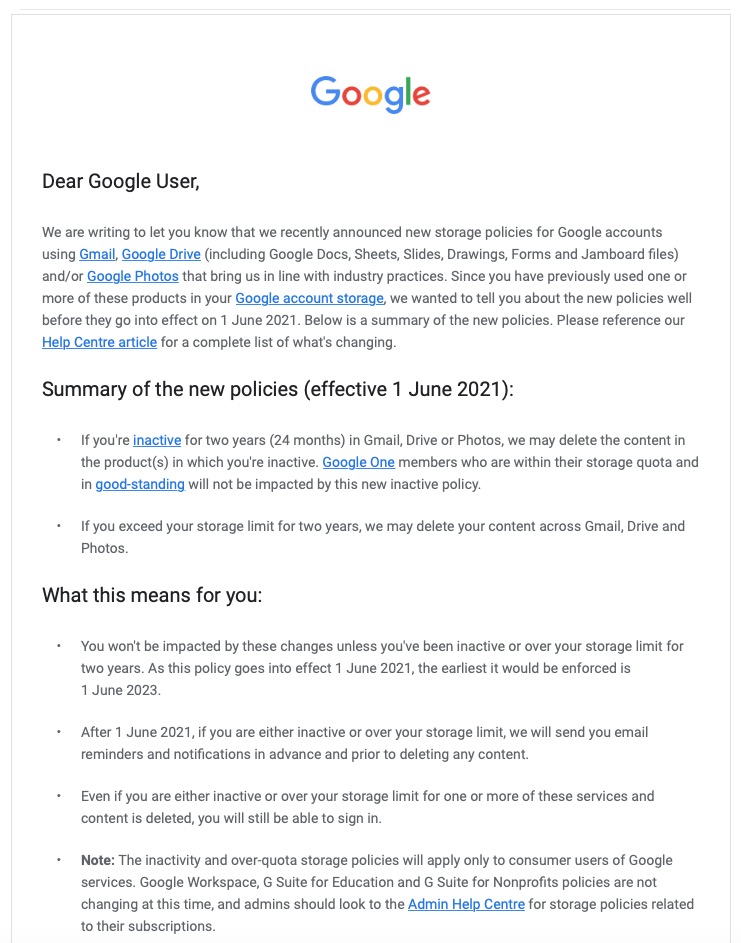
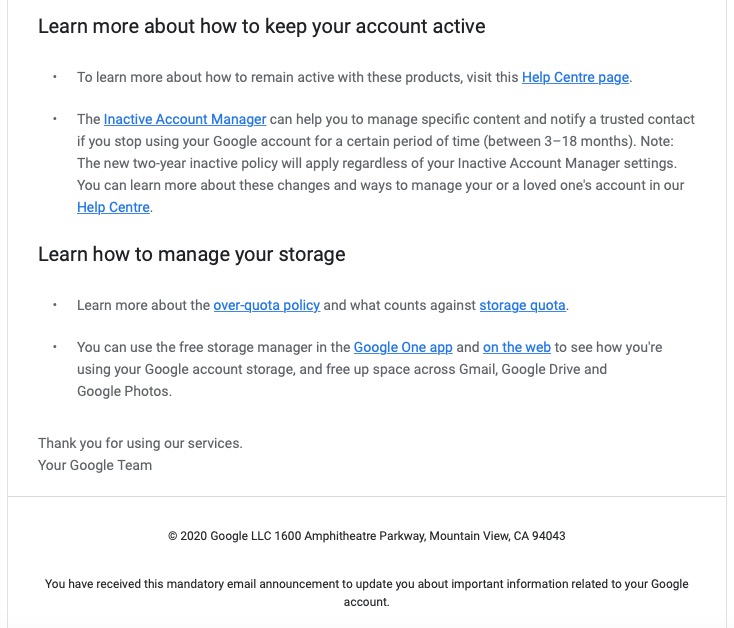
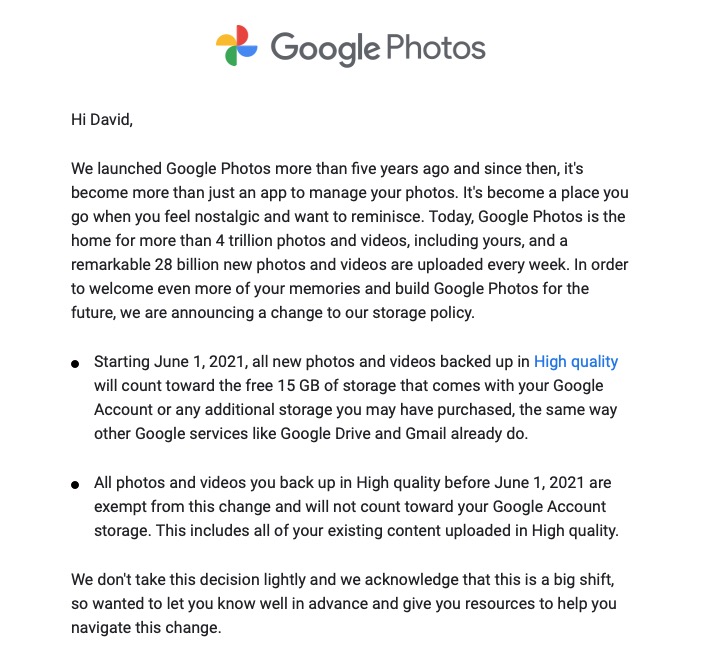
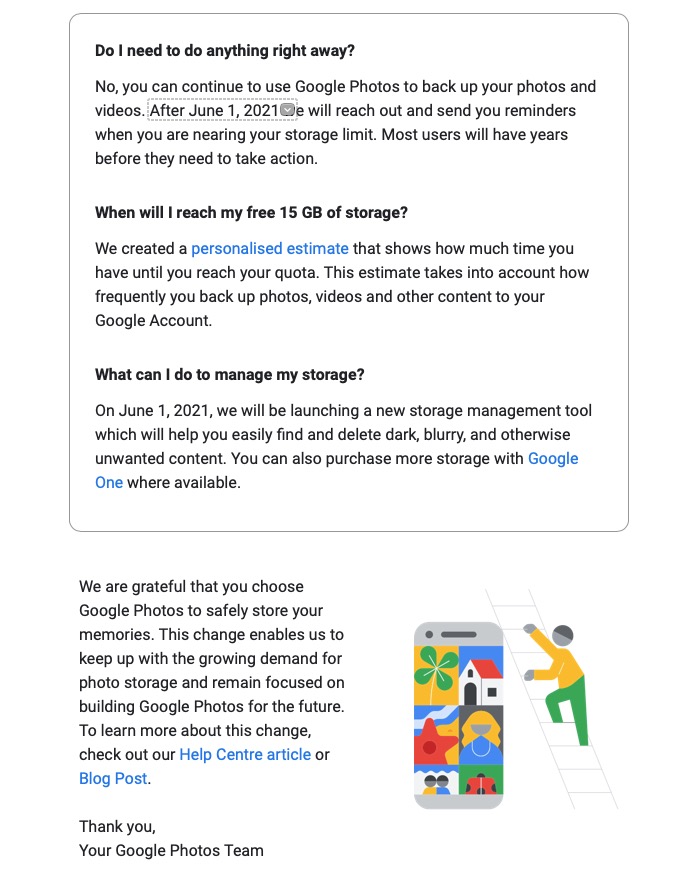
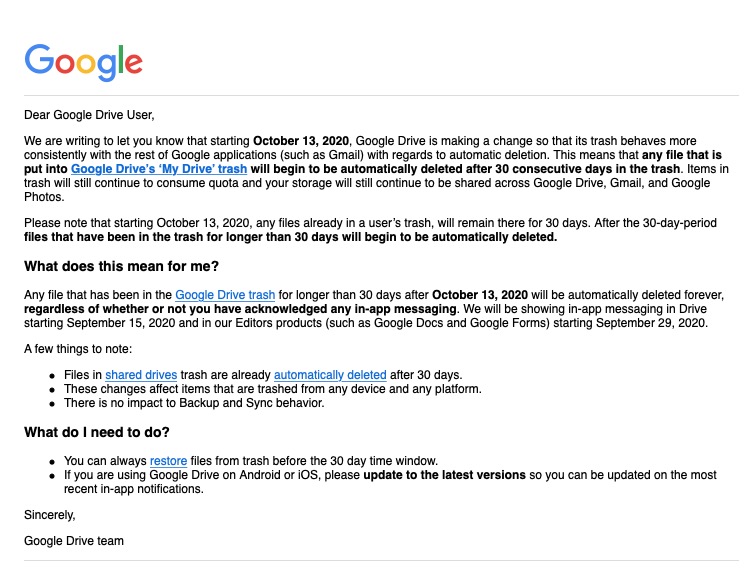
If you’ve got a Google account – you use Google Photos, Google Drive (and the Google Docs suite) or Gmail – you’ll probably have received an email telling you about the changes that Google are making to the way it calculates how much of the 15Gb of storage the company allocates to you has been used. They have also spelled out clearly when they will delete content that has been inactive for more than two years.
This post relies heavily (almost verbatim) on information already available on Google’s Help Pages – which should always be taken as the main source for information.
Currently each Google Account includes 15 GB of free storage quota, which is shared across Gmail, Google Drive, and Google Photos. You can add to your storage quota by purchasing a Google One membership (where available). To learn more about your quota, see what items count towards your storage.
Prior to June 1, 2001
The following items count against your storage quota
- Original quality photos and videos backed up to Google Photos
- Gmail messages and attachments, including your Spam and Trash folders
- Most files in Google Drive, including PDFs, images, and videos
If you go over your storage quota
- You can no longer upload new files or images to Google Drive
- You can’t back up Original quality photos and videos to Google Photos
- Your ability to send and receive email in Gmail may be impacted
- You can still sign into and access your Google Account
After June 1, 2001
The following additional items will count against your storage quota:
- High quality and Express quality photos and videos backed up to Google Photos after June 1, 2021. Learn more about this change.
- Files created or edited in collaborative content creation apps like Google Docs, Sheets, Slides, Drawings, Forms and Jamboard.
- Only files created or edited after June 1, 2021 will count against your quota.
- Files uploaded or last edited before June 1, 2021 will not count against your quota.
And this is how your usage impacts your data
If you do not use Gmail, Google Drive (including Google Docs, Sheets, Slides, Drawings, Forms or Jamboard) or Google Photos for 2 years, your content within the inactive product(s) may be deleted (after reasonable advance notice).
If you go over your storage quota
- You can’t upload new files or images to Google Drive.
- You can’t back up any photos and videos to Google Photos.
- Your ability to send and receive email in Gmail can also be impacted.
- You can’t create new files in collaborative content creation apps like Google Docs, Sheets, Slides, Drawings, Forms and Jamboard. And until you reduce your storage usage, neither you nor anyone else can edit or copy your affected files.
- You can still sign into and access your Google Account.
When you have been over your storage quota for 2 years, your content in Gmail, Google Drive (including Google Docs, Sheets, Slides, Drawings, Forms and Jamboard files) and Google Photos may be deleted.
So it’s time to do a stock take of what Google Storage you’re using. You’ll see something like this if you’ve got an active Google account …
Seeing how you may be using your Google Storage, with June 1st approaching might seem pretty frightening to you, so you might need some help to know what you should do, and whether purchasing a Google One plan might be right for you …
What happens when you’re over quota
When you’re over quota, it means you’re using more storage space than you have available. If you’ve been over quota for 2 years or longer, and you have not freed up or purchased more space to get back under quota, all of your content may be removed from Gmail, Drive and Photos. But before that happens, we will:
- Give you notice using email and notifications within the Google products. We will contact you at least three months before content is eligible for deletion.
- Give you the opportunity to avoid deletion (by paying for additional storage or removing files)
- Give you the opportunity to download your content from our services. Learn more about how to download your Google data.
How to go back under quota
We provide access to storage management tools that help you identify ways to free up storage space at https://one.google.com/storage. Another option to free up space is to download your files to your personal device and then delete them from your cloud storage.
However …
If you want more storage space for Gmail, Drive, and Photos, you can upgrade to a larger storage plan with Google One. You can click on the link “Get more storage” from the page that you should have arrived at above, and you’ll be offered the opportunity of purchasing a Google One Storage Plan …
But what happens when you’re inactive?
When you have been inactive in Gmail, Google Drive (including Google Docs, Sheets, Slides, Drawings, Forms, Jamboard or Sites files) or Google Photos for 2 years, all of your content may be removed from that product. But before that happens, we will:
- Give you notice using email and notifications within the Google products. We will contact you at least three months before content is eligible for deletion.
- Give you the opportunity to avoid deletion (by becoming active in the product)
- Give you the opportunity to download your content from our services. Learn more about how to download your Google data.
If you’re a Google One member with no outstanding payment or quota issues, you are considered active.
Important: As an example, if you’re inactive for 2 years in Photos, but still active in Drive and Gmail, only your Google Photos content will be deleted. Content in Gmail and Google Drive (including Google Docs, Sheets, Slides, Drawings, Forms and Jamboard files) will not be deleted if you are active in those products.
How to stay active in these products
The simplest way to keep your data active is to periodically visit Gmail, Google Photos, and Google Drive (and/or collaborative content creation apps like Google Docs, Sheets, Slides, Drawings, Forms, Jamboard and Sites) on the web or through a Google app. Make sure you’re signed in and connected to the internet.
- For Gmail: Android; iOS; mail.google.com
- For Google Drive: Android; iOS; drive.google.com
- For Google Photos: Android; iOS; photos.google.com
Please note that you may have multiple accounts set up on your device. Activity is considered by account, not by device. Make sure you’re using the services for all accounts on which you wish to remain active.
The article from Google concludes with some FAQ which you might like to refer to, including one answer on how to preserve content from a loved one if they pass away and the use of their Inactive Account Manager.
In another article, I will attempt to answer the vexed question of how to delete photos from Google Photos in your storage plan, your computer and your device the way that you want them to be deleted, ie not deleting them all, just deleting them from the place you want them deleted!!!!
Lastly, here’s a link to how to delete files (and reduce the count against your quota) from Google Drive.