Category: Apple

  • Apple’s iCloud and Google Photos

    A short post to highlight an issue that I wasn’t aware of, and now have to be very wary of. Indeed Ian’s comment about whether you need the Google Photos app installed on your iPhone is prescient – you most probably don’t if you’re backing-up photos to your iCloud account. And if you’re backing-up photos to a google account (as described in the earlier post), there are different ways of doing it which means you quite possibly don’t need the Google Photos app on your phone.

    Remember, you can always look at the photos stored in the Google cloud from photos.google.com on your Apple phone or tablet – you don’t need the app installed.

    So here goes … another learning point. I’ll type it in capitals so that you don’t miss it!

    IF YOU DELETE PHOTOS FROM THE GOOGLE PHOTOS APP ON YOUR IPHONE OR IPAD AND IGNORE THE WARNING – THEY WILL BE DELETED FROM ICLOUD AS WELL.

    There, I’ve said it. I didn’t realise it, and always shied away from deleting photos in Google Photos because I didn’t really understand what the warning meant. But now I do and obviously that’s not something I want to do, so how do I go about removing photos from the app, and/or from the Google cloud. Read on!

    Scary, eh?! Take care when deleting photos from your iPhone

    What I’ve researched is well summarised in the following article …

    How to Delete Photos from Google Photos But Not from iCloud

    and a couple of posts on the Google Photos support forum …

    Does deleting photos in Google Photos also delete them from my iCloud photo Library?

    Google Photos deleted my iCloud Photos library

    So what do I take from this?

    1. If you want to delete photos from Google Photos – do it on the Google Photos website, not in the app on your iPhone or iPad. If you have synchronisation active, they will then be deleted from the app on your device as well.
    2. If you want to quickly delete all photos from your Google Photos app, just delete the app having first ensured that you’ve switched off Backup and Sync, because if you don’t, when you re-install the app, they will be synchronised back to your iPhone/iPad.
    3. If you don’t need the Google Photos app, uninstall the app, no photos will be deleted from your phone, they will still be in your Camera Roll and will have been stored on iCloud, nothing will be deleted from the Google Photos website either, so you will have to do that deletion from photos.google.com – see Case 1 above.
    4. An unlikely scenario, but one to be aware of – If you turn off iCloud before deleting photos from Google Photos on iPhone, then the photo will be removed from your device and Google Photos. It will stay on iCloud. However, if you enable iCloud again on the same phone, the photo will be removed from it too.
    5. And even more unlikely, but probably unexpected and a potential surpriseDisabling Backup and sync will not have any effect on your iCloud photos as it is just a setting to enable or disable backup service on Google Photos. If you disable it and then delete photos from the Google Photos app on your device, they will be removed from the device as you are technically deleting the device copy on your iPhone/iPad. And once it is deleted, the iCloud copy gets deleted automatically.

    Remember. Google Photos in the cloud, and iCloud Photos do NOT work the same way. Apple aims to synchronise all images across all devices with “the master” being held in the cloud. The Google Photos app is just a portal looking into the images on the device, and synchronising (if chosen) those images with ones stored on photos.google.com.

    I hope that makes it all perfectly clear 🙂 🙂 🙂

    In summary, do not delete photos in Google Photos directly from your iPhone if you have both apps on the device. Use the Google Photos website to remove photos. It is suggested that you should delete a few photos initially. Then, check them in iCloud after some time. If the photos are still there, you can go ahead and delete them in bulk.
  • Buying an entry level Mac system for Photography

    Buying an entry level Mac system for Photography

    Update: Go to bottom of post for a change in advice …

    I was recently asked my opinion on buying an entry level Mac system that could be used for Photography – principally for use with the Adobe Creative Cloud Photography Plan.

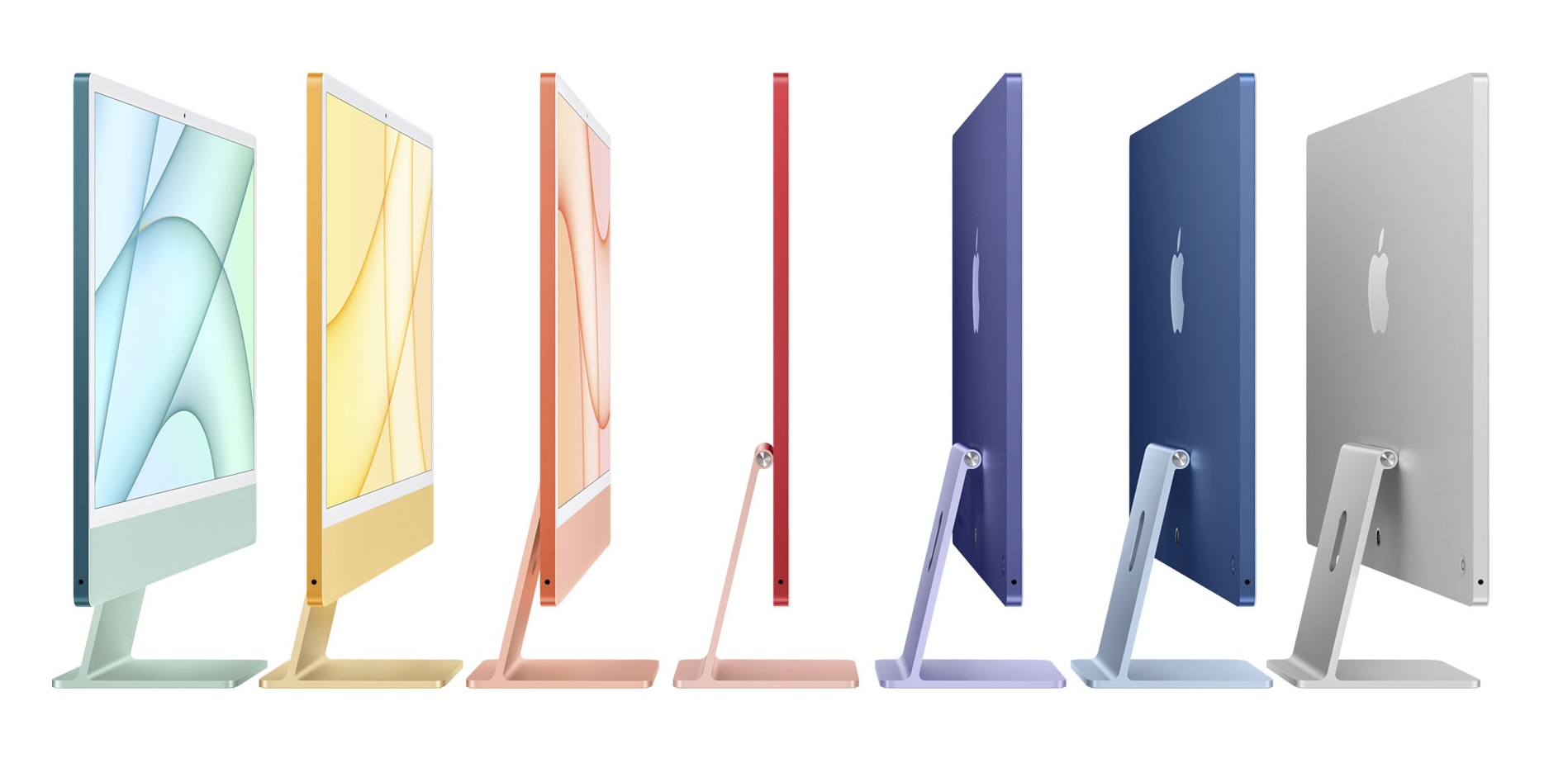
    The budget was set as equivalent to an iMac M1, 2021 24″ system, but I had been impressed by the reviews I’d read for the  Mac Mini M1, 2020 system – the first of the new Apple M1 systems to be introduced. I made the following observations in comparing the Mac Mini as an alternative to the iMac

    “We’re talking about the base model at £699 with 256Gb of SSD (storage) and 8Gb RAM. [I’m thinking you would not need more than 256Gb for storage as you could store/archive photos on an external disk – more about that later because it relates to a possible iMac 24” as well.]

    A comparably spec’d iMac 24″ would be £1449 – both are 8-core CPU, 8-core GPU systems, so identical processing power.

    The cheaper model (£1299) I wouldn’t recommend as it doesn’t have ethernet, and doesn’t have the legacy USB-A ports (which are not essential, but are really useful to have and removes the need for convertors – which would take up Tb/USB-C ports which you could be using for external fast Tb hard disks – see below!).

    With the Mac Mini you also get an HDMI slot (so you could run it through a TV as well as possibly using this port for a monitor). [I have done this – I’m still using an old Mac Mini as a Media Server.] However you need to purchase a display, a keyboard and a mouse to do a true comparison. That’s the next step.

    The latter two are easy. Apple’s Magic keyboard – (£20 less if you want a silver/white one) and Magic Mouseagain £20 less if you want a silver/white one are the obvious choices – but you can repurpose exiting keyboards and mice if you want to save money! So that’s £258 to add to £699 for the Mac Mini.

    To match the iMac (similar spec as above) leaves £492 for a monitor, and here’s a ViewSonic one that gets good reviews for £201. So that leaves you with money in hand. If you wanted to spend more you could go for a bigger screen, or a different make. I have a Benq monitor (not this one though) – they have a very good reputation. A recent review of monitors for the Mac Mini can be found here.

    Doing it this way gives you a lot of flexibility to buy the right machine, with the same performance, and add the flexibility of getting the best possible display within a budget of £1449 – which I deem to be the minimum for an iMac 24″ equivalent.

    Next … on to RAM. The consensus appears to be that if you’re NOT a professional, and you AREN’T into heavy-duty video-editing, then 8Gb RAM should be sufficient. However … as you can’t upgrade either of the two Mac models, I would always shell out the extra £200 to get 16Gb RAM, if you afford it. Indeed you could use the money saved on the ViewSonic monitor (above) and you’d still be in credit!!!

    And finally external hard disks. The beauty of the Mac platform is that it has developed and promoted the fastest Thunderbolt technology. Therefore for archived images (or documents) you will not notice any problems (at least I don’t) by using external hard disks rather than increasing the minimum of 256Gb SSD in the system. You should use this storage for applications and current (ie a couple of recent years) images, and store everything else on a dual-drive external configuration. One for archived images/documents that you might want to access occasionally, and the other for TimeMachine backup – the best and easiest to use backup software ever invented. [Indeed I would go as far as to say that I’d consider buying a Mac for TimeMachine alone!!!]

    Both of these could be normal HDD technology as the speed of access you get from SSD would not be required. I’d certainly recommend looking at either Lacie, or G-Tech Drives (I’m using the latter these days) – I have this one for my photos – and this one for my backups.

    I have one caveat to make. The Mac Mini M1, 2020 will almost certainly be replaced/upgraded later this year which means you a) might have the opportunity to get a refurbished one, b) might considering a possible delay until later, or c) might just crack on with the project knowing that even the current model is a really good option [Review article]. 

    24 hours later: I showed this to a friend and he pointed out the discrepancy between the monitor I’d suggested and the pixel density of the iMac 24″ display, and casually commented that I hadn’t added a camera either. Both of these factors materially change the advice given above, and whilst I still maintain the Mac Mini is an excellent platform for Photographic use especially when paired with a high quality monitor, I have to concede that you cannot improve on the iMac 24″, 2021, 8Gb RAM, 256Gb SSD with the extra ports at £1449.