Screenshots on Windows and Macs

It’s often useful to be able to send an image of your screen, or part of your screen to someone. In fact I use this facility all the time when creating these blog posts.

On the Mac, it’s very easy …

Press Cmd-Alt-3 to capture a complete screen

Press Cmd-Alt-4 to draw a window that you want captured

To be guided through the options you can

Press Cmd-Alt-5 and from the Options screen decider where you want to save your Screen shots [I save them to a Dropbox folder so they’re available between my two machines], and also choose the option for the type of screen capture you want, or even to Record a series of actions.

On the iPad/iPhone, it’s straightforward too. You can capture a screen by Pressing the Power Button and the Home Button together [It works best if you press the former just before you press the latter].

To take a screen shot in Windows, I suggest you follow the advice in this post. Or alternatively watch this video …

Jim has sent me this note as well …

It might be helpful for your notes if I run through my Windows 10 sequence. The relevant key on my laptop is labelled SYSRQ/PRTSC, so I have to press the ALT key at the same time to print the screen. This puts the image onto the clipboard, so I then have to save it somewhere. I usually go to Paint Shop Pro and paste it as a new image. One thing I am investigating is what happens if you have two pages at once on the screen. At the moment I can only print one of the pages, depending on which I click on.

URL Shorteners

I’ve annoyed a few people over the years (well – one person at least) by pasting overlong URL’s in blogposts, and on WhatsApp. Ever since Google stopped supporting it’s own URL shortener I’d forgotten to go and look for an alternative to setup as an extension in my browsers (Safari, Chrome, Brave and Firefox) and more importantly to have as an app on my smartphone.

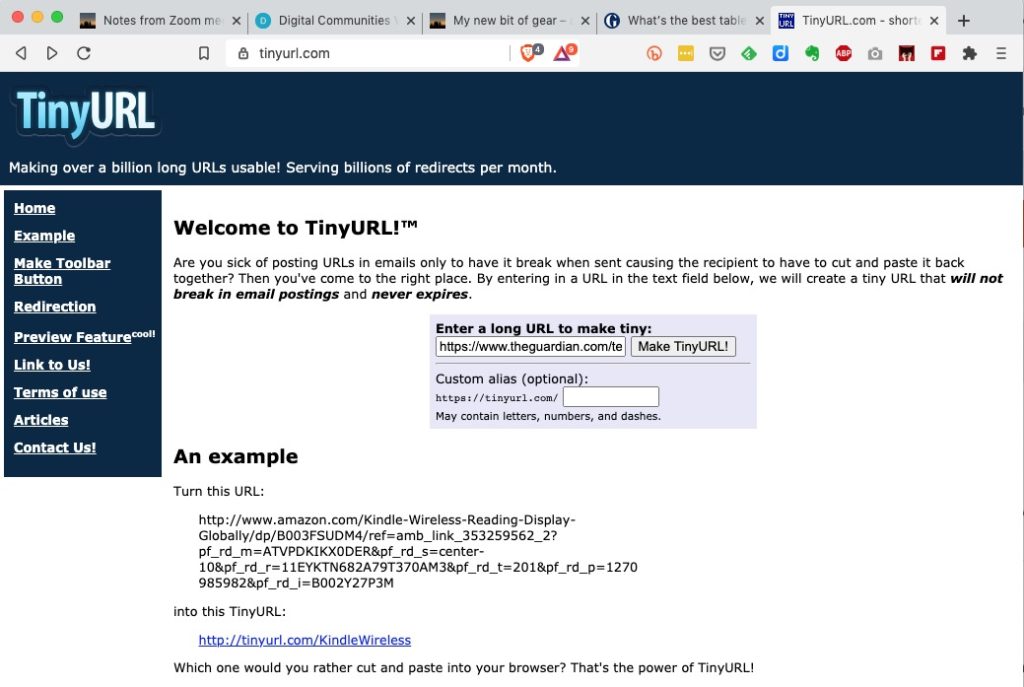
I’d used tiny.url for many years, but that generally meant you had to copy and paste the URL to a page you’d left open on the tiny.url page …

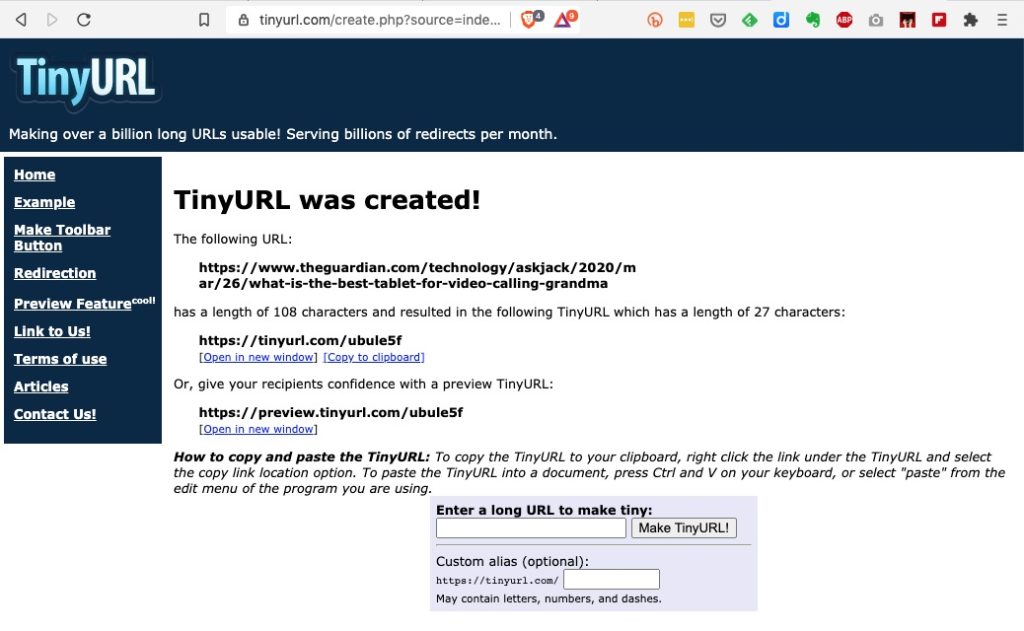
… and then once shortened you could copy the shortened URL to the email, WhatsApp, etc message.

But it would be much nicer if there was an extension which you could just click on from the page in question, and you’d get a shortened URL. That’s where bit.ly come in. It’s available both as an extension for Chrome, Brave and Firefox and as an app for iOS and Android.

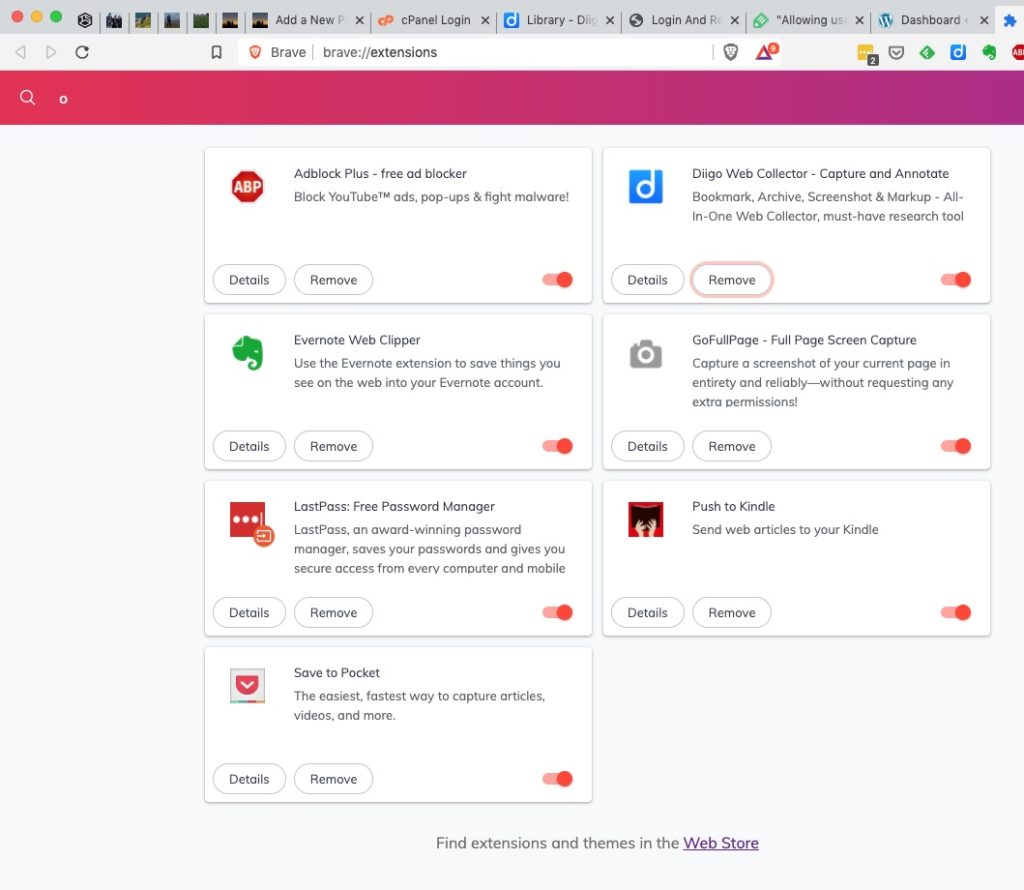
To install bit.ly as an extension on Brave, go to Brave > Window > Extensions …

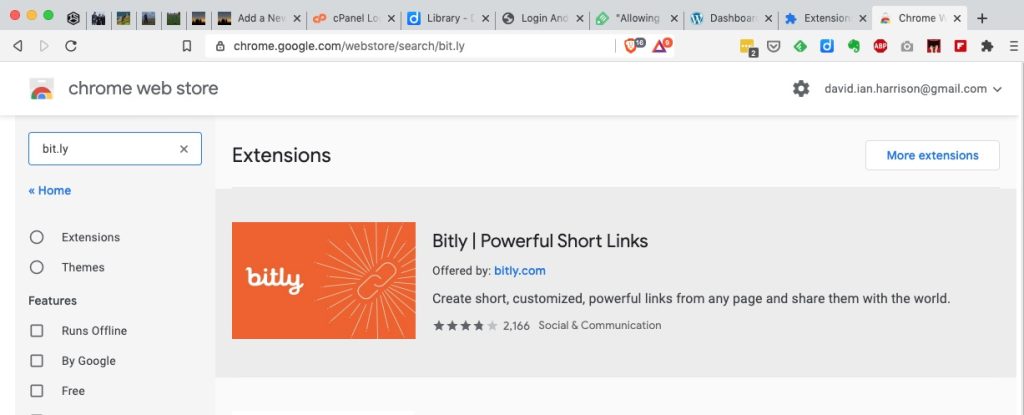
… click on Web Store …

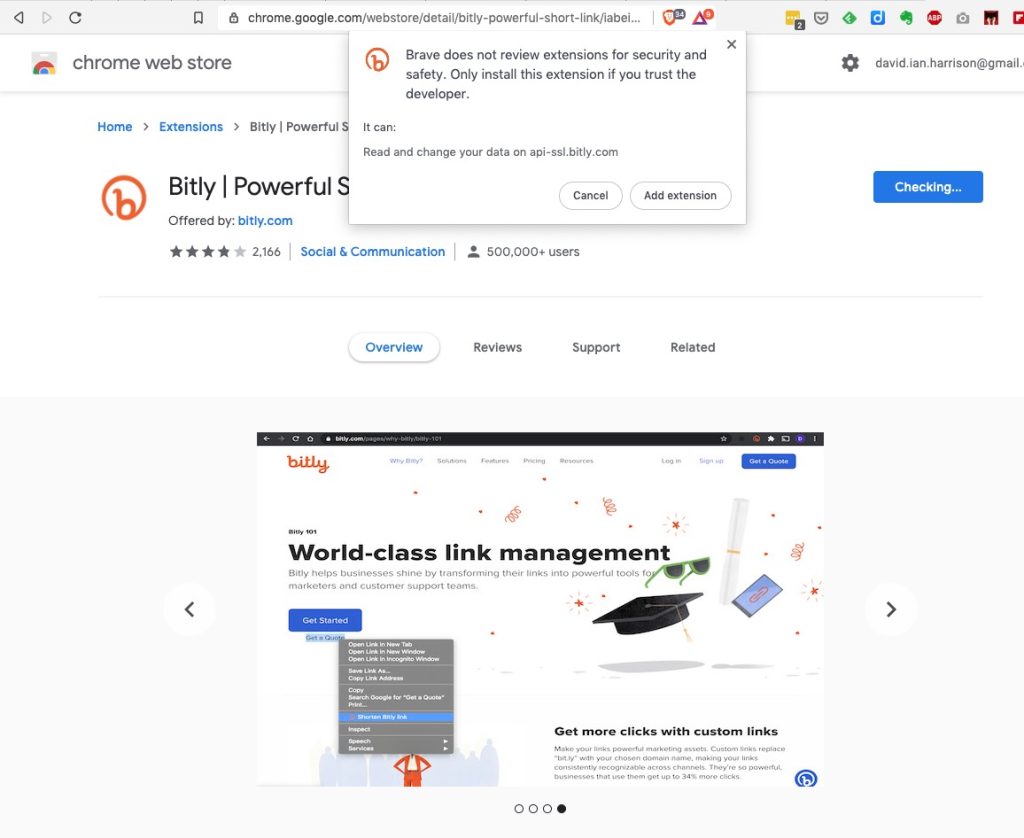
… and type bitly, or bit.ly in the Search Box. Click on the bit.ly box and agree that you want to install it in Brave (or Chrome) …

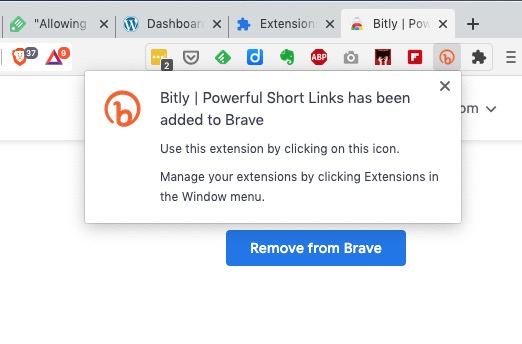
… agree that you want to add the extension and then you will see it’s been added to your browser extensions …

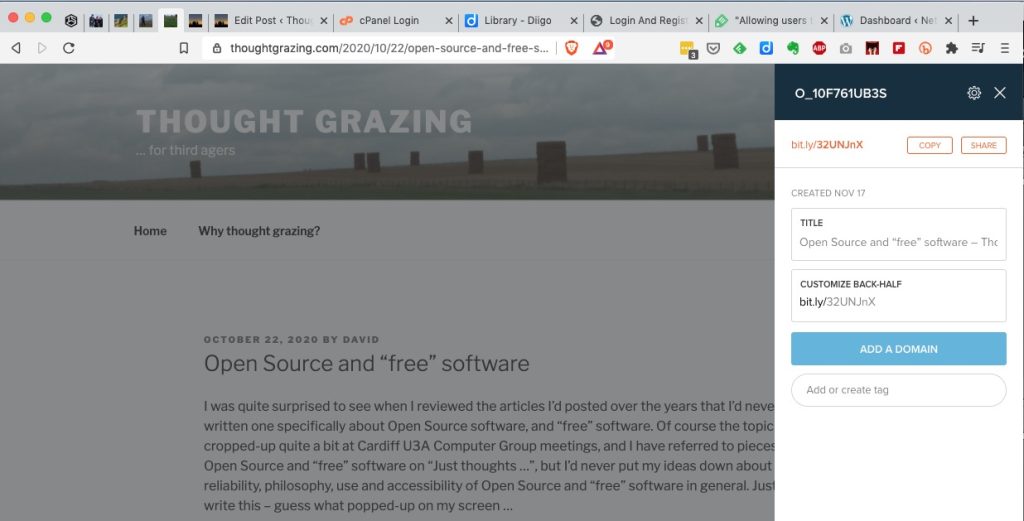
It’s as straightforward as that. Now any time you want to shorten a URL, all you need to do is click on the bitly icon and (after creating a bit.ly account), the following dialogue box will come up …

… and you can then Copy the shortened URL that’s been created, wherever you want to.