Smart TVs

I last ran this topic in 2019 pre-Covid, so a lot of water (dare I say streams) will have gone under the bridge since then, but actually not much has changed either. Essentially screen technology has improved and some suppliers have adopted a standard LED technology across their range, which makes choice easier, and also they (particularly LG, but other main players too) now use the same operating system platform across their range – thus making it easier to use different TVs from the same manufacturer.

What hasn’t changed is the way they compete with each other for the “smartness” of their devices, so I will spend some time on that, without giving too much in the way of recommendations – that has to be a very personal choice, but hopefully if you’re undecided you may find something of use to make a choice.

So first the questions you need to ask yourself, with a guide to possible answers.

What size of TV do you need?

What is Smart TV?

Do you need a Smart TV? Concerns about privacy; advertising; snooping [Reveal – you don’t need a Smart TV, it’s just terribly difficult to avoid getting/buying a new one – and I certainly wouldn’t recommend buying an older model second-hand!]

Articles on “How to buy a dumb TV” and Best Dumb TVs (US-based articles) and in the UK

Links to non-Smart TVs (from Amazon UK) – one model from LG; Sharp quite possibly; Cello the major supplier in the UK market.

Finally a dated article from my last summary, but the findings are no less valid and do indicate that a streaming device might be worth considering.

Is the built-in Smart TV provided the best way forward? Well from a convenience point of view, quite probably yes; but if you’re concerned about obsolescence of the Apps on the platform; privacy etc – quite possibly not. An alternative is to buy a TV monitor (or a computer monitor) and pair it with a streaming box from Apple, Roku, Amazon or Google. [This is an option I’m carefully looking at for a new TV in the kitchen, because all the main suppliers don’t seem to supply an option smaller than about 29″ which would (I feel) be just too imposing in a relatively small space).]

Freeview or FreeSat? Both require an aerial or satellite dish, but there are ways of watching Freeview (Freeview Play) as a stream, or watch Freeview as an app on your mobile device and cast/play it to your TV. If you only want the main “terrestrial” services and don’t require streamed services (from the Internet) – these could be for you. There’s also YouView which is a packaged service combining terrestrial channels with some popular streamed services which is then available on certain platforms (ie BT TV, EE TV, TalkTalk TV and Sony TV) – a sort of semi-Smart TV service.

Do you need a TV at all, or could you just use your laptop/tablet instead? Well that’s certainly a possibility. For personal use I’d not discount it and all the major streaming services do have apps for laptops/tablets.

However as the reference to Youview (above) makes clear, if you choose to get your TV service from BT, or Virgin, or TalkTalk or EE, they will provide a box which could provide a lot of what you need for your TV viewing with out the need for Smart TV. These boxes will have replay, and recording as standard features.

Then there are the streaming service boxes – all of which have their own Smart TV features. I’ve mentioned Roku already, but there’s Google Chromecast, Now TV (which is built on the Roku platform) and of course Apple TV boxes, which can all run alongside your Smart TV apps, or add to your Dumb TV offerings. With a Roku device you can also use Apple’s Homekit and Airplay – useful for sending your Apple device’s screen to the TV – and control it with Amazon Alexa or Google Assistant.

Which neatly leads into Voice assistants and Sound.

Without much risk of contradiction I can say that the audio quality from all TVs is poor unless you are willing to pay mega-bucks. If you’re willing to pay a little bit extra, it’s worth investigating the Soundbar that pairs with your TV manufacturer, or alternatively to look at an offering such as Sonos – there are others, and I’m not going into this area.

What is worth considering when looking at a Smart TV is how it integrates into the rest of your Smart Home. It really is worth stopping and considering whether you’re a Alexa, Google Assistant or Siri home. You quite possibly have acquired devices from several manufacturers not realising that they all have different voice assistants and not all of them integrate easily (if at all) into your Smart Home Hub – Nest, HomeKit, Echo, or SmartThings – to name a few.

If we look at just the Voice assistants and TVs – Samsung supports its own Bixby (which integrates, I believe with it’s own SmartThings smart home platform), Google Assistant and Amazon Alexa and whilst it has a very good integration withe Apple through its Apple TV app, and through AirPlay doesn’t allow you to use Siri voice assistant, or integrate it into Apple’s Homekit ecosystem. Indeed it’s only LG that has a good integration with Apple Homekit enabling you to use Siri to control the TV. [Indeed LG is a good platform for voice assistants because it supports Google Assistant and Alexa as well as it’s own little known ThinQ system.]

To give you an idea of the complexity of the problem, this article lists the commands you can use with a Samsung TV to control it in three “languages” – native Bixby, Assistant and Alexa. You should really look at this article to get a better handle on Voice Assistants for your TV.

What other alternatives are there to watching streamed digital content on your TV?
Well the most obvious one is to use your PC/Mac as the TV and use software on the PC/Mac to record Free-to-Air content. You will need a digital tuner for the PC/Mac to get the content.

The best known company in this area is Hauppage and you can see a list of their products here … http://www.hauppauge.co.uk/site/products/prods.html

There are other companies in this field but I can only vouch for Hauppage. I once installed a card in my Windows PC, and I still use a USB Tuner with my MacBook Pro to watch TV.
Postscript.

There also DIY streaming solutions. I have built a Plex server, but Plex as an app is also a possibility, streaming content across the internet from an app. My Plex server allows me to archive content I want to watch and watch it from anywhere in the world from a server running at home. That used to be useful for my family in Australia before they started using a VPN.

I’d known about Plex for quite a long time but had (prior to 2016) not done anything about it. I’d formally used iTunes essentially as a media server built around a MacMini that sat under the TV with all content that I could record from Get iPlayer Automator and my media that I’d digitised including my CD collection, as well as the streamed versions purchased and downloaded from iTunes/Amazon.

I set about a project to install Plex on the MacMini (which I’d upgraded with a new SSD drive, an extra 4Gb of RAM and an install of the latest MacOS (then High Sierra, it now runs Catalina). Here are a few links to show you my direction of travel.

Plex now lets you stream and record live TV—if you have an antenna and tuner
How it works
Working with my Apple TV and Sonos
And I’ve signed-up for a lifetime subscription to Premium services so that I can …
Record free-to-air content … I’ll let you know how it goes!!

I forgot to mention new display technologies from LG/Sony/Panasonic called OLED, and Samsung – QLED. This article explains what these are. It would appear that Samsung and Sony just lead the pack on their use of QLED technology, but it is a race that all will try and compete and try to win. WYSIWYG or what you like is what you buy (WYLIWYB).

I haven’t handled other screen technology – 4K, 8K, HD-Ready, Curve-screen 3D and more – notes from the last time I did this topic, here and here (two different links).

Other links (useful if you have an online Which? account) – not sure whether they’re open to everyone …

http://www.which.co.uk/reviews/internet-tv-boxes/article/recommendations/which-best-buy-internet-tv-boxes
http://www.which.co.uk/reviews/pvrs-and-set-top-boxes/article/recommendations/which-best-buy-pvrs-and-set-top-boxes

Just too much to mention!!!!! So in conclusion, some more links …

For the Samsung aficionados – their argument why their platform is the best for Smart TV; a persuasive argument (for me) from LG as to why their support for Apple Homekit maybe the best way forward for me; a review of HomeHubs which might be of use/interest in helping to come to a decision on what you might want to do in your house re. smart homes (a topic we will definitely study again in “Digital matters”); and finally a review of all the major Smart TV platforms for you to ponder over and consider whether anyone has a significant advantage over any of the others FOR YOU! I stress again, this is a very personal decision.

And finally, some more links from the previous presentation to maybe make you think and help your decision-making.

Watching Sky TV without signing-up to a long-term subscription service

If you’ve got a Mac you can download programmes from BBC iPlayer and keep them forever using Get iPlayer Automator

Then there’s TVCatchUp – watching TV “on the go”

Keeping safe online

The threats – real and perceived

[First posted 10 September 2020]
[minor changes 21 June 2021]
[Revised 24 May 2023]
[MINor changes 25 January 2025 – links checked]
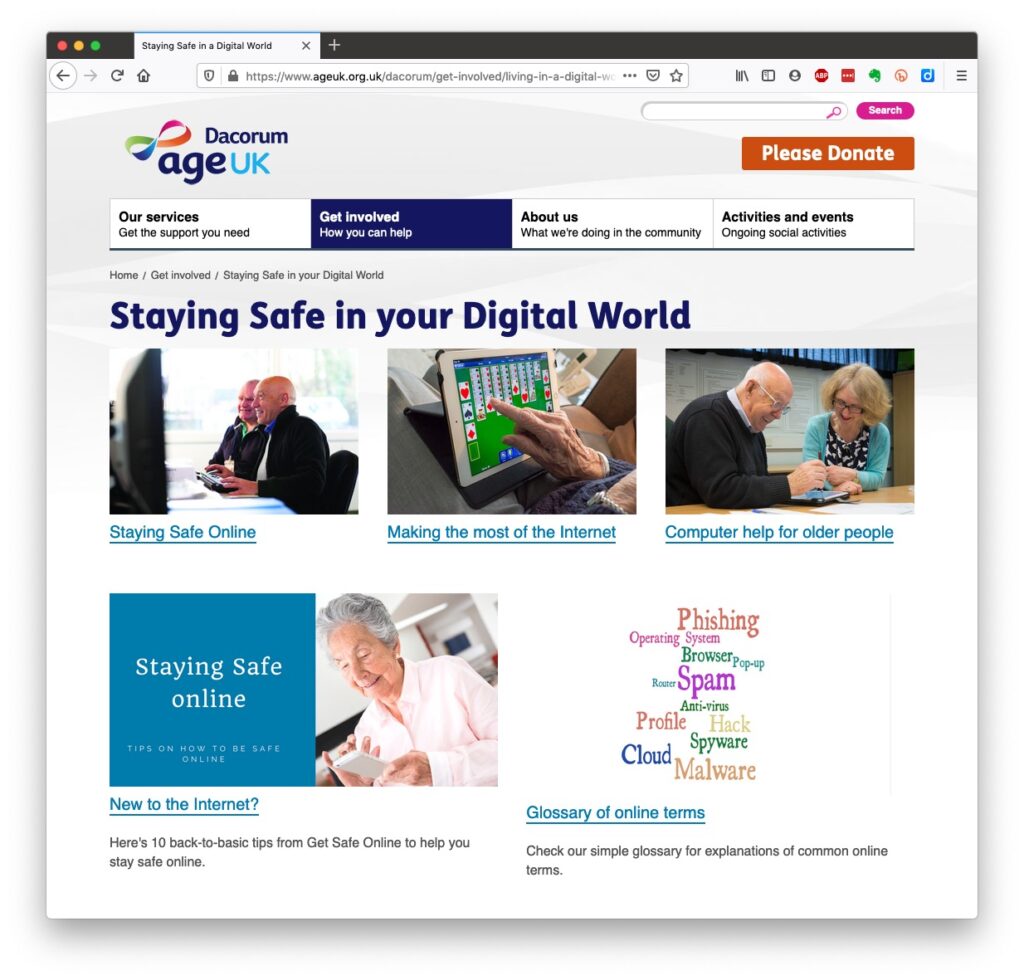
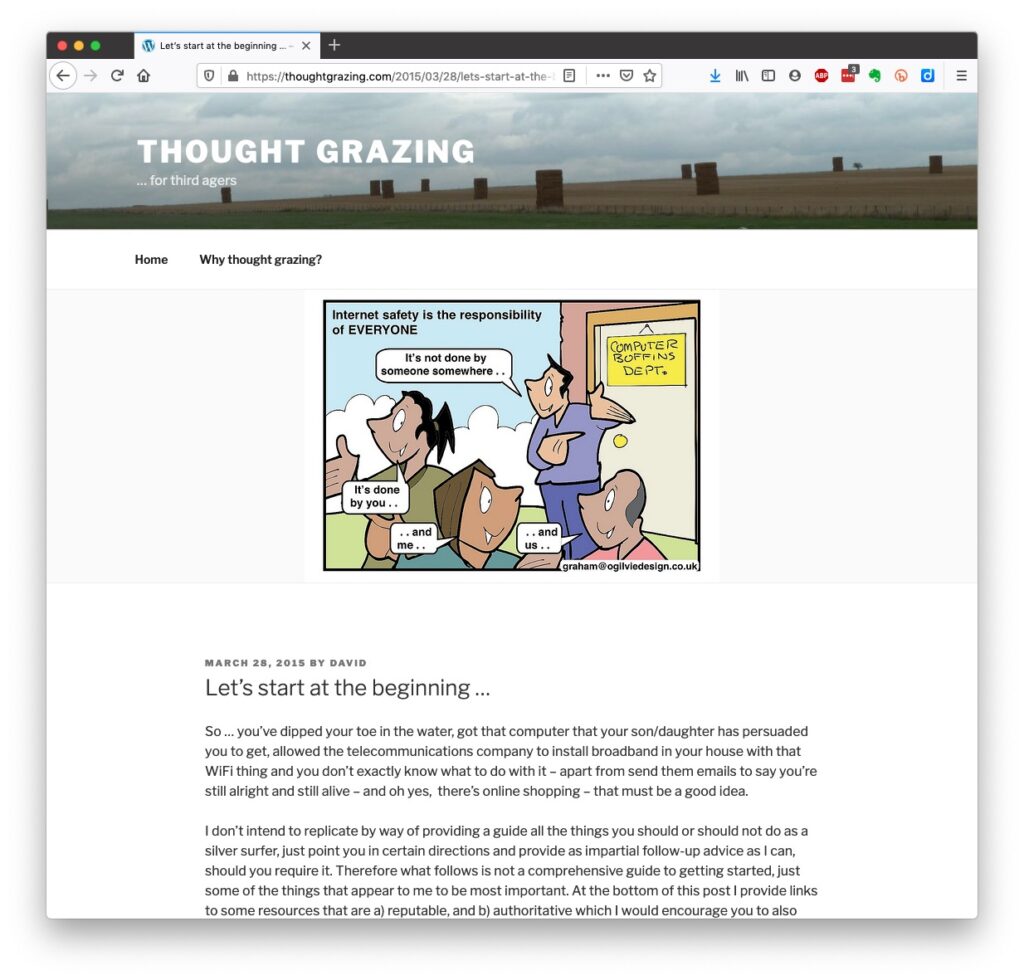
Luckily, there’s plenty of advice and guidance available – often slanted particularly towards our demographic (ie oldies) …
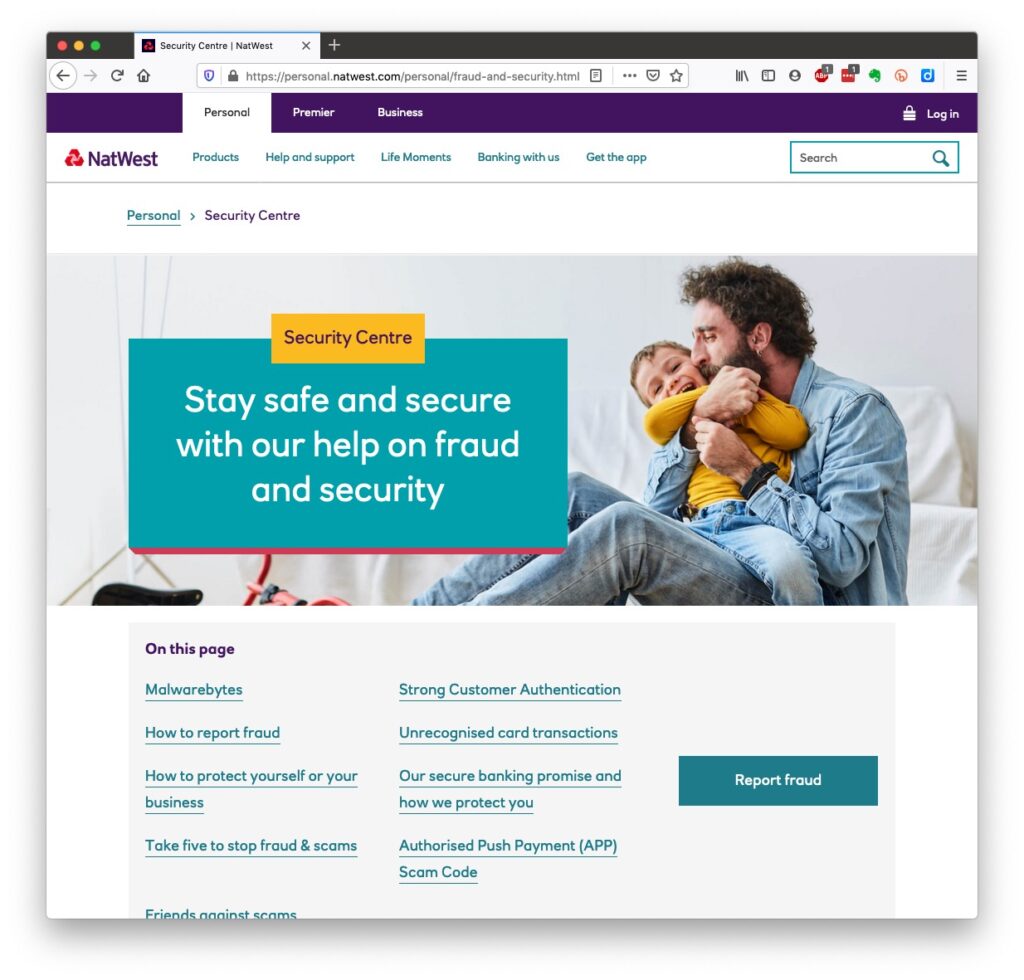
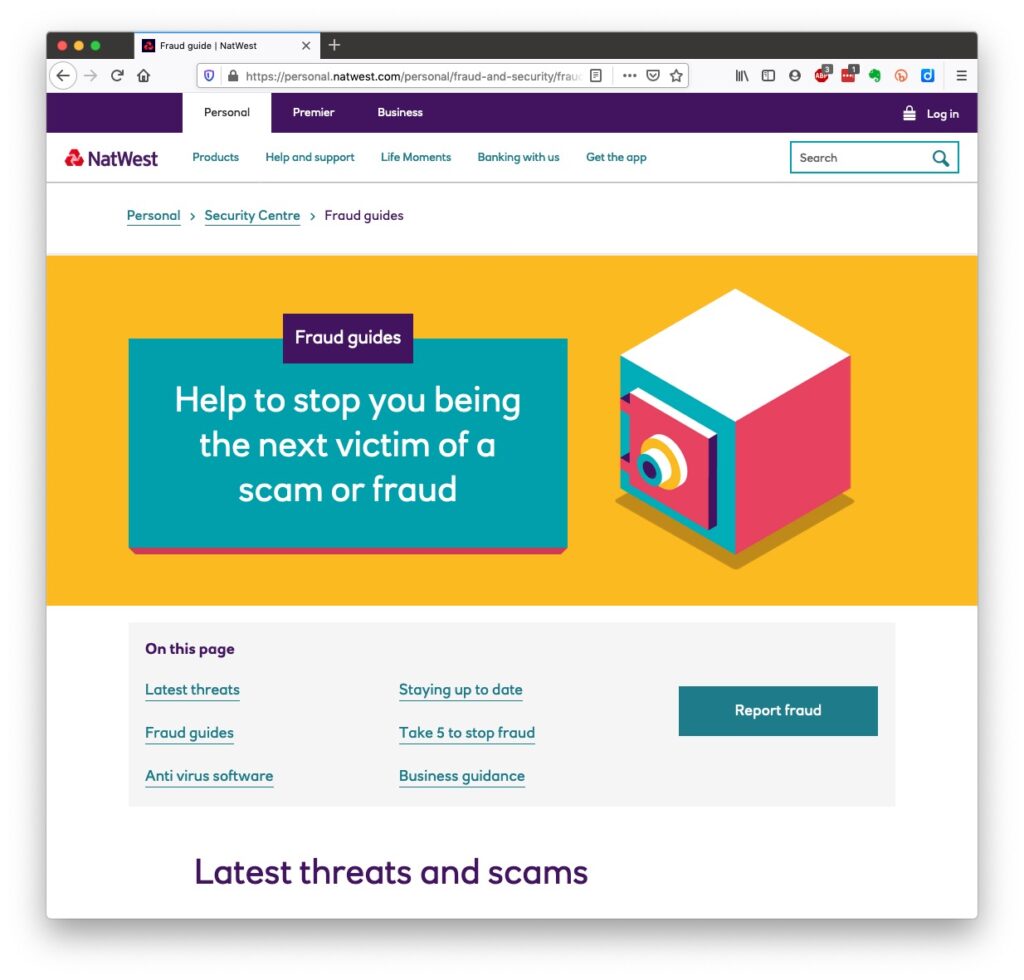
Those two sites are particularly easy to follow and understand, but others are equally informative and targeted. Your bank probably has guidance which it publishes online and which is accessible to everyone, not just their customers …
I’ll return to further information, guidance and references at the end of this post, but first we need to look at a few issues, discuss some terminology that’s widely used and try and tease out what’s really important, and what’s just an inconvenience and then it’s up to you to judge where you find yourself on the scale of …

Terrified -> Apprehensive -> Sensibly Aware -> Relaxed -> Unconcerned

First let’s distinguish the difference between online security and online privacy. These are two different issues which are however linked. Sometimes you have to relinquish some privacy to receive a service – unless you choose to pay for it (and I’ve long been an advocate of paying for services if they do a job that is necessary); exactly how much privacy are you prepared to relinquish? Security on the other hand is an absolute – you should not be prepared to accept less than your very best efforts . We’ll deal with that in the third part of the post.

How do you relinquish your privacy, and how much of a loss of privacy is acceptable?

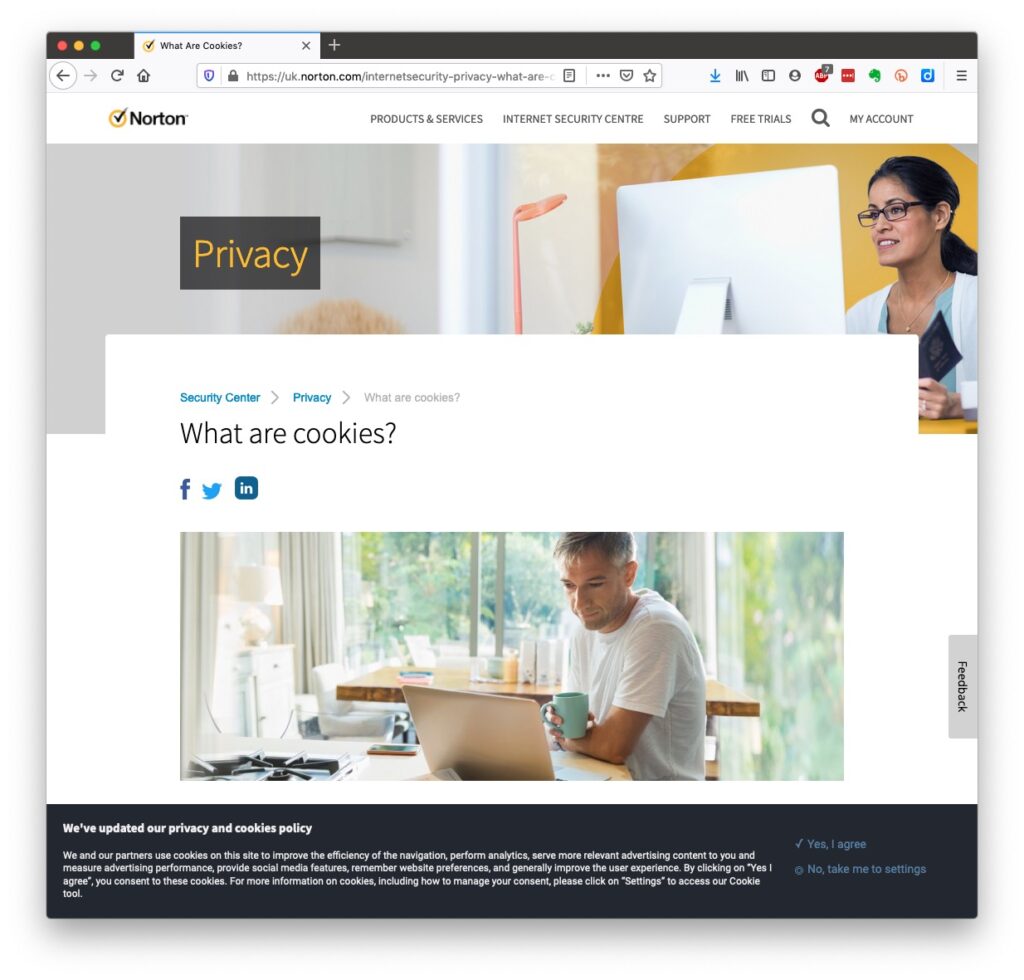
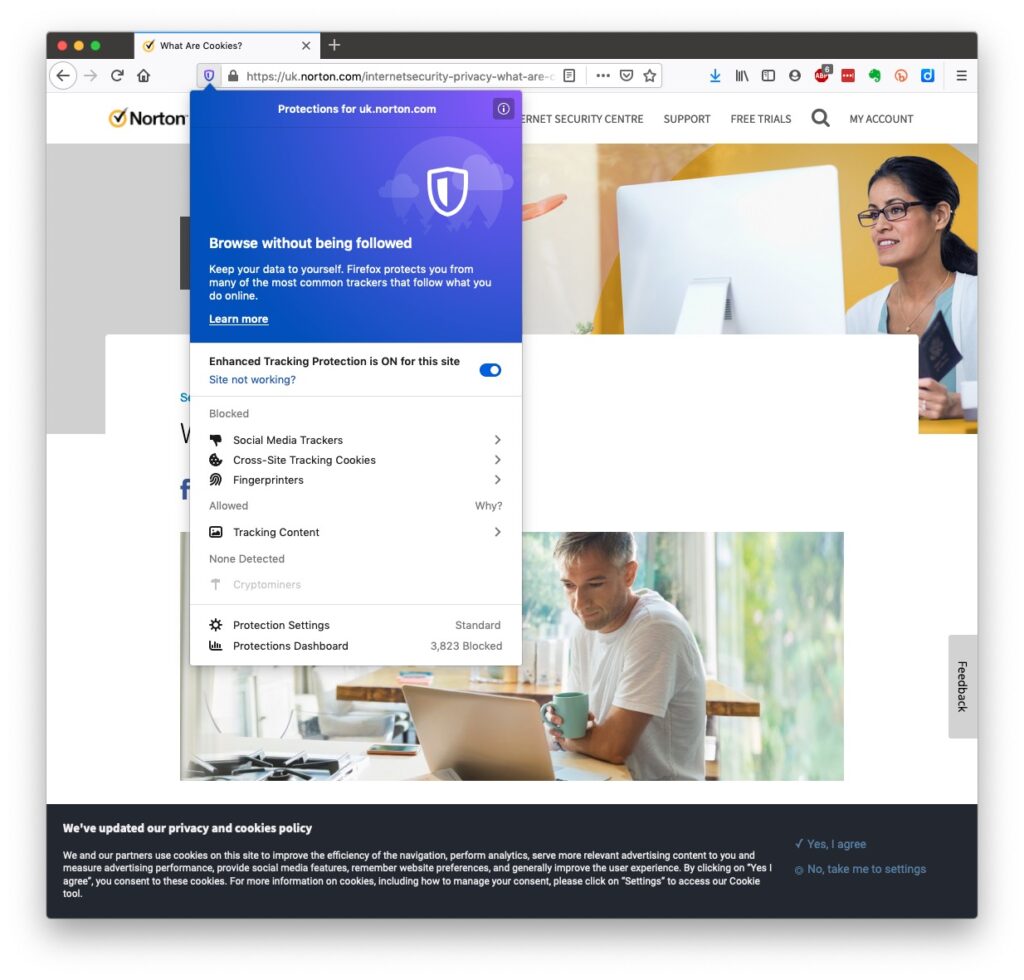
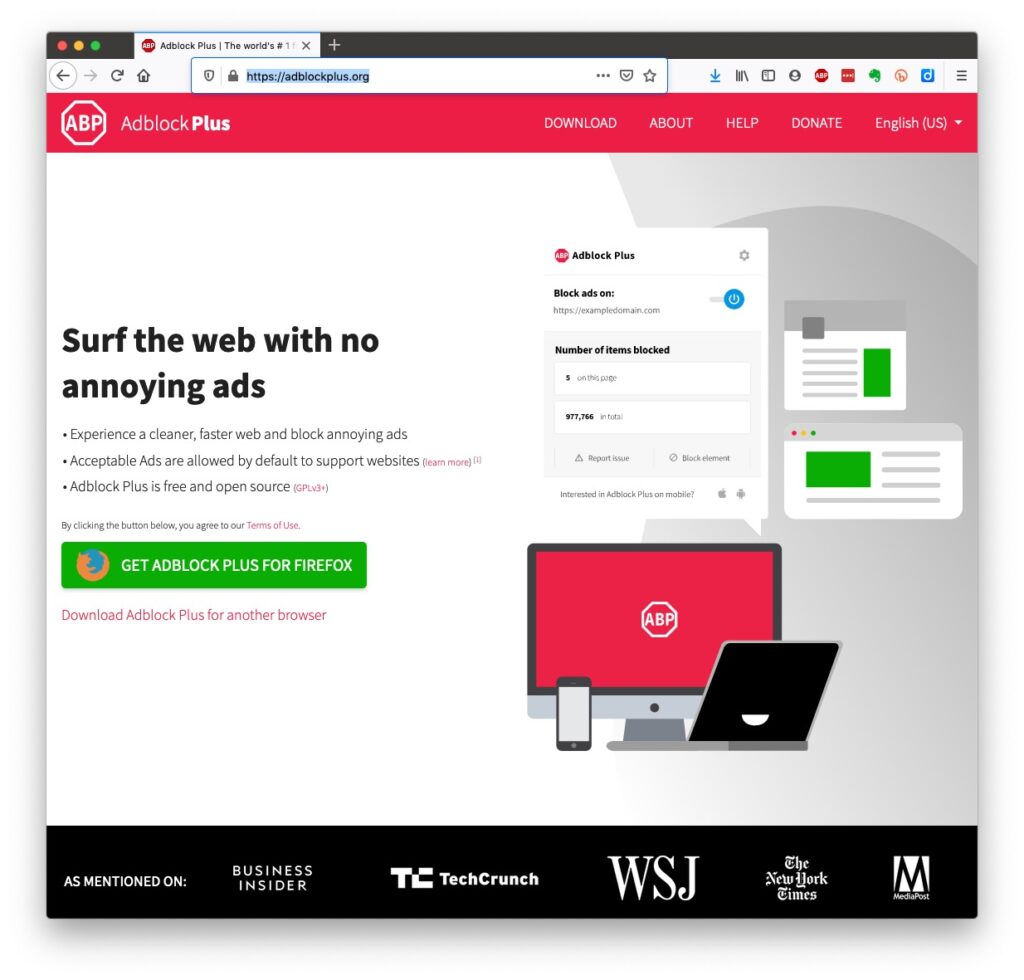
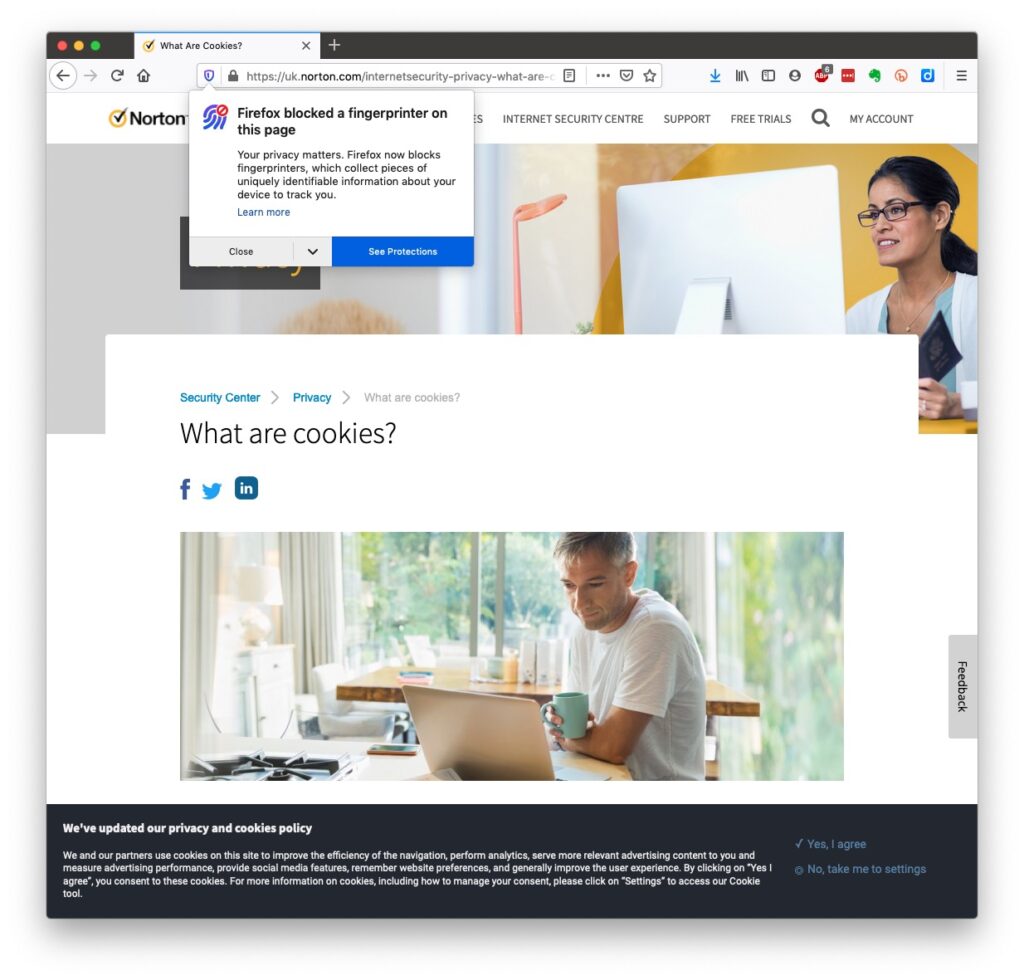
Some services could not be offered without income from adverts, or paid-for advertising – eg Facebook, Twitter and Instagram; and some eg Google and Amazon track and provide information to resellers if you don’t block them from doing so. As an example of how much value Google sees in getting knowledge of what you’re doing and where you’re doing it, they pay Apple up to $20bn annually to remain as the default search engine for any browser that’s running on an Apple device! Sometimes you may click on a link and have been asked whether you wanted to accept cookies – what exactly are they, and what do they do. This article from Norton explains what they do quite well … Essentially, they record what you do on a website so that when you return to it some of the settings are remembered and applied. Cookies do however also have a downside in that some can also act to track your activity once you’ve left the site. For that reason, you should disable in your browser the ability of third-parties to glean information from a cookie, and also to prevent them tracking your activity once you’ve left the site. You can at anytime, clear the cookies from your browser, and indeed on some internet browsers set them up to delete cookies when you leave (close the window) the site. If you use Firefox as your browser it will alert you the first time you go to a site that it is using a Fingerprinting cookie itself. For instance from the Norton site above … … this is a nice feature, and should not be confused with the rather more annoying GDPR pop-ups which almost force you to accept because you can’t be bothered to check the detail that some sites force you to go to in selecting which cookies you want to store. I often just stop using that site rather than read through the options, or alternatively just click “Accept” and hope for the best!! Not exactly the privacy control that was envisaged when the legislation was enacted! Another thing you should consider is whether you want adverts to be shown, or not. You might get a request to enable adverts when you visit a site, the answer you supply will be held in a cookie in the browser – that’s how cookies work. Firefox, Brave and Microsoft Edge, by default, block most, if not all, adverts. These are often annoying and having a browser that blocks adverts, or if you use Chrome – using an ad-blocker like AdBlock Plus often makes for a more “pleasurable browsing experience” by limiting the intrusion you might feel upon your privacy.
Which brings us to browsers and search engines

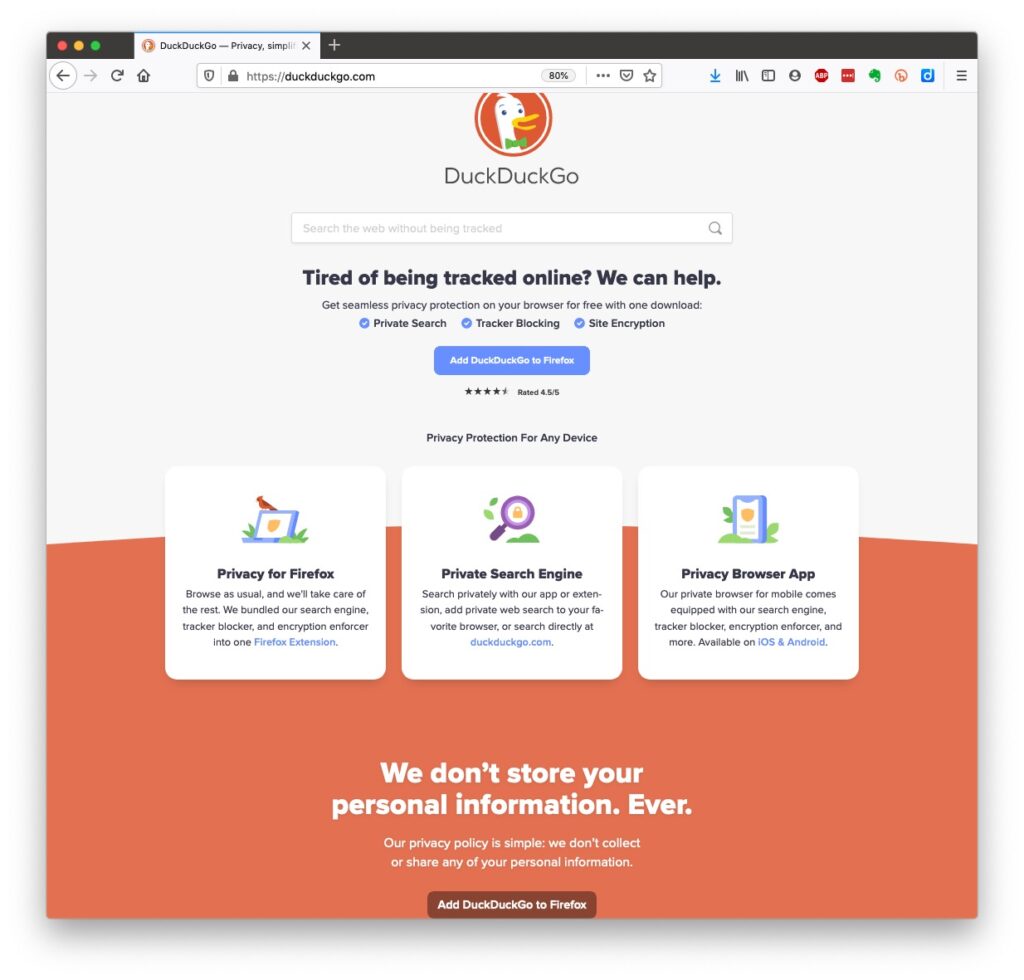
Search engines are not created equal! Whilst Google is often thought to be the same as the internet and is often mistaken to be an internet browser itself, it is in fact just one of a range of possible search engines that you can use to look for information on the internet. It uses a platform called Chromium to display the results of its searches to you through a browser called Chrome. However, other browsers – Microsoft’s Edge, Brave and Opera all use the same underlying Chromium technology – the difference being they don’t track what you’re doing “to present the content that most meets your needs” (Google’s philosophy) and in some cases (eg Brave) they can actually prevent tracking of your browsing history. I use Safari – which on Apple is my default browser choice, but otherwise I would use either Brave or Firefox as my internet browser. So what safe and private search engine could you use as an alternative to Google. I use DuckDuckGo
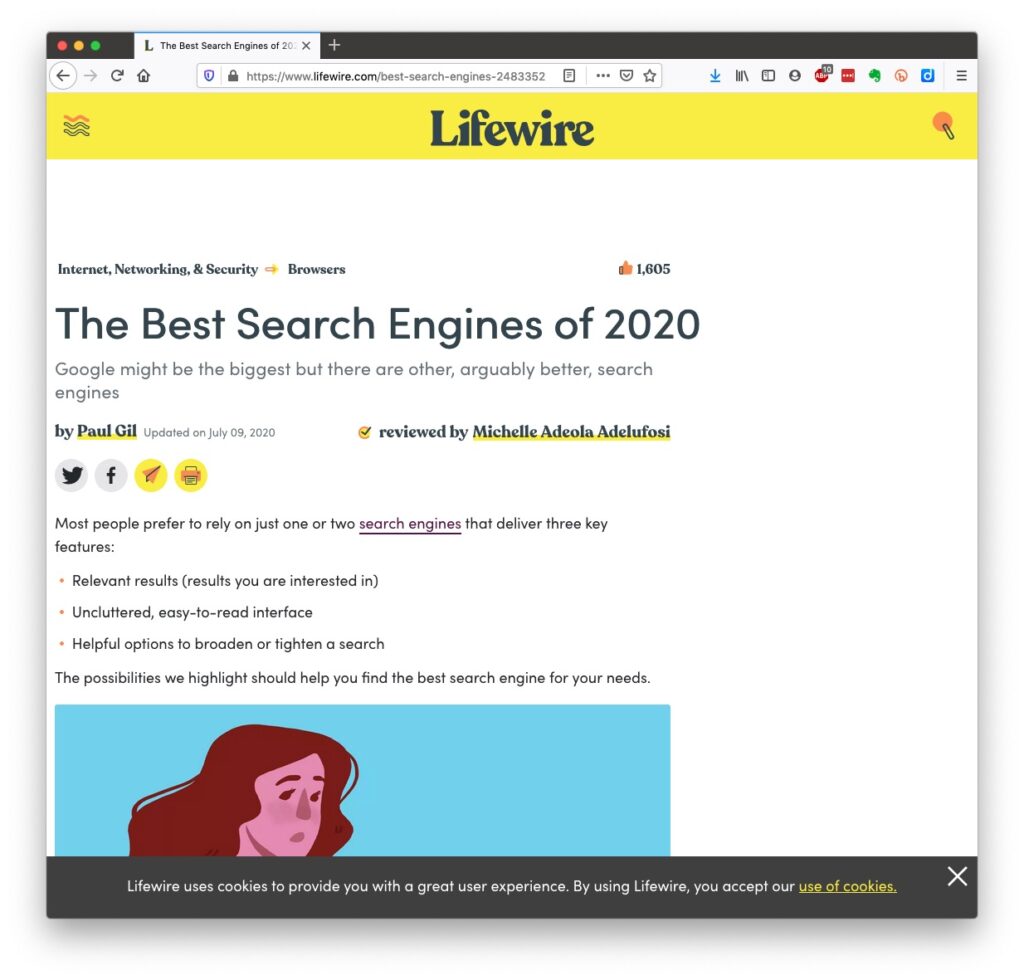
… but others I could have used might have been Ecosia, Bing, Yahoo or another one you might choose from this article or the list of other articles at the end of it …
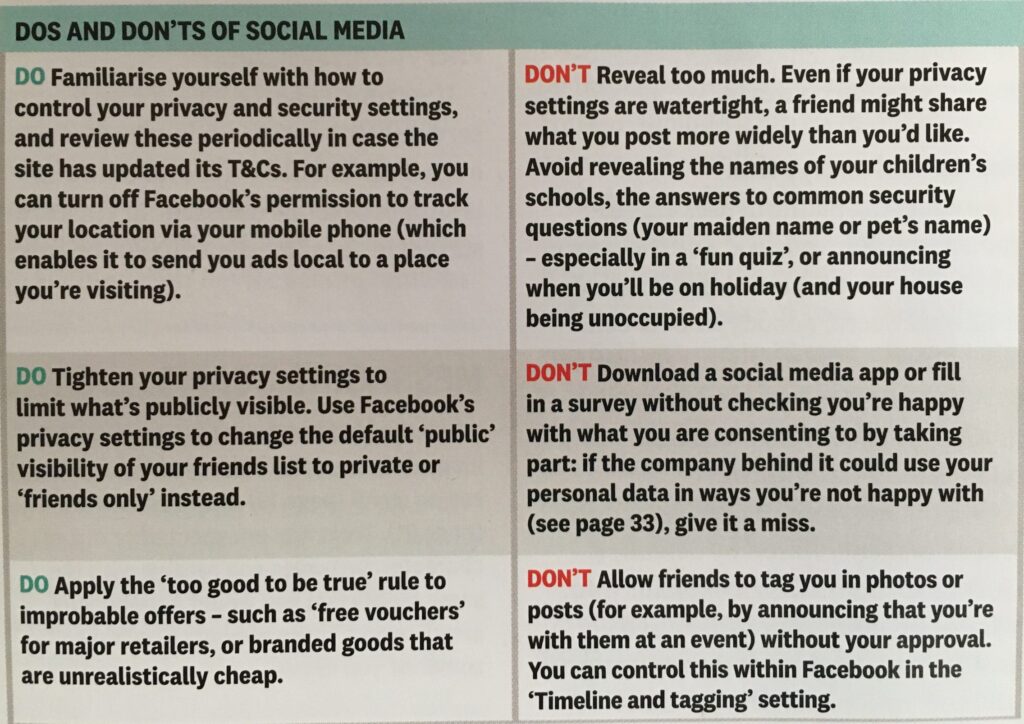
There are many specialist search engines (as explained in the above article) that can give you much better, and more targeted results than a broad-spectrum Google search with the priority of results returned by relevance, not payment received by Google. Finally, no discussion of Privacy can ignore Social Media and Facebook in particular. These applications, if left to their own default settings, are effectively personal information mining engines. They grab what information they can from you, and sell it on to whoever is willing to pay for it; or are indeed the platform for data mining, vis the Cambridge Analytica affair. Recent enforcement of data privacy legislation by the EU on Meta has resulted in them being hit with massive fines for breaches of GDPR law by Facebook, Instagram and WhatsApp. Online retailers are not exempt from this and Amazon for instance has a wonderful record of your browsing history! Are you sure you know what it’s doing with that information? So look at this table taken from a recent Which? supplement – Staying Secure in a Digital World – and just check whether you need to change your settings if you use any Social Media apps …
So that’s Privacy dealt with.

Should you be frightened?

The take away message I want you to have is Frightened – no; cautious – yes! Online banking is very secure – a recent survey in Which? produced the following scores …
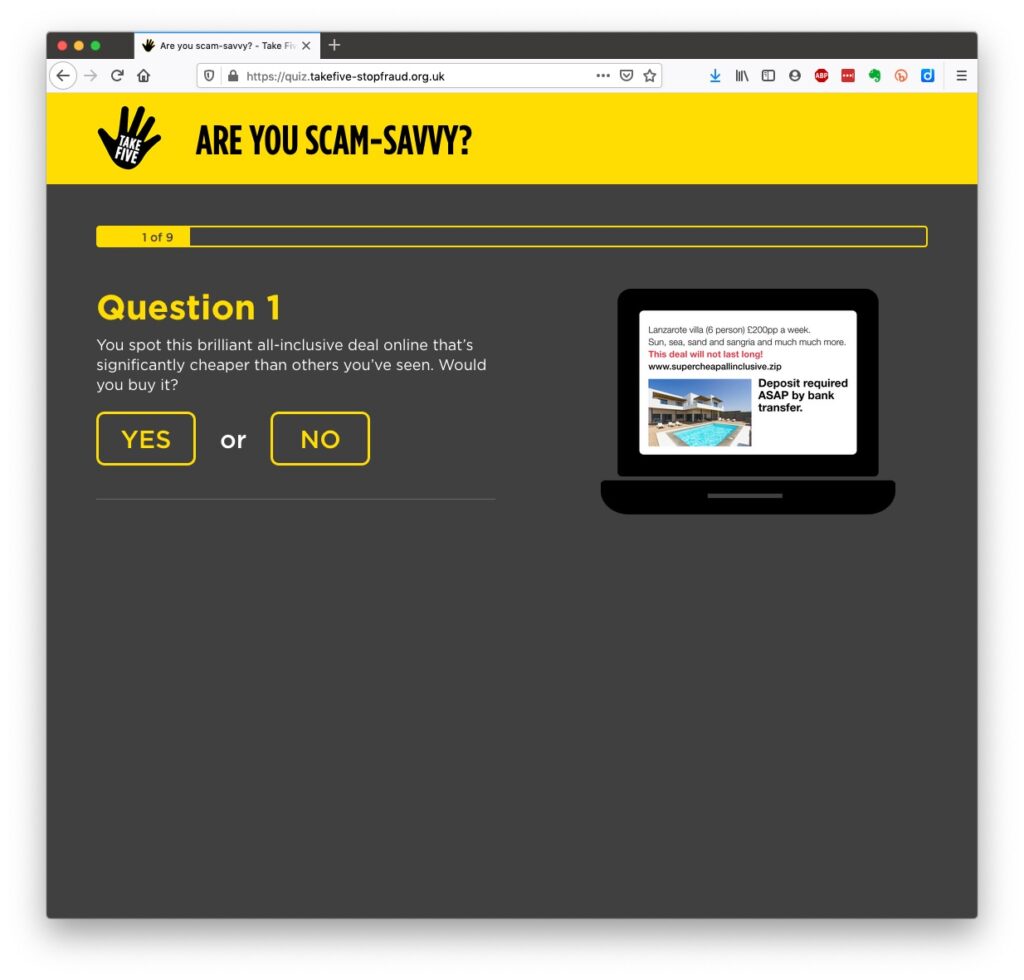
… plus you are protected and most of the banks are increasingly opting to adopt an online and mobile guarantee to refund you where you’ve been the innocent victim of a fraud. Here for instance is Barclay’s “Online and Mobile Banking Guarantee.” They really don’t want to shell out money, so they are trying to educate us to be wise to scams. So let’s take a scam test
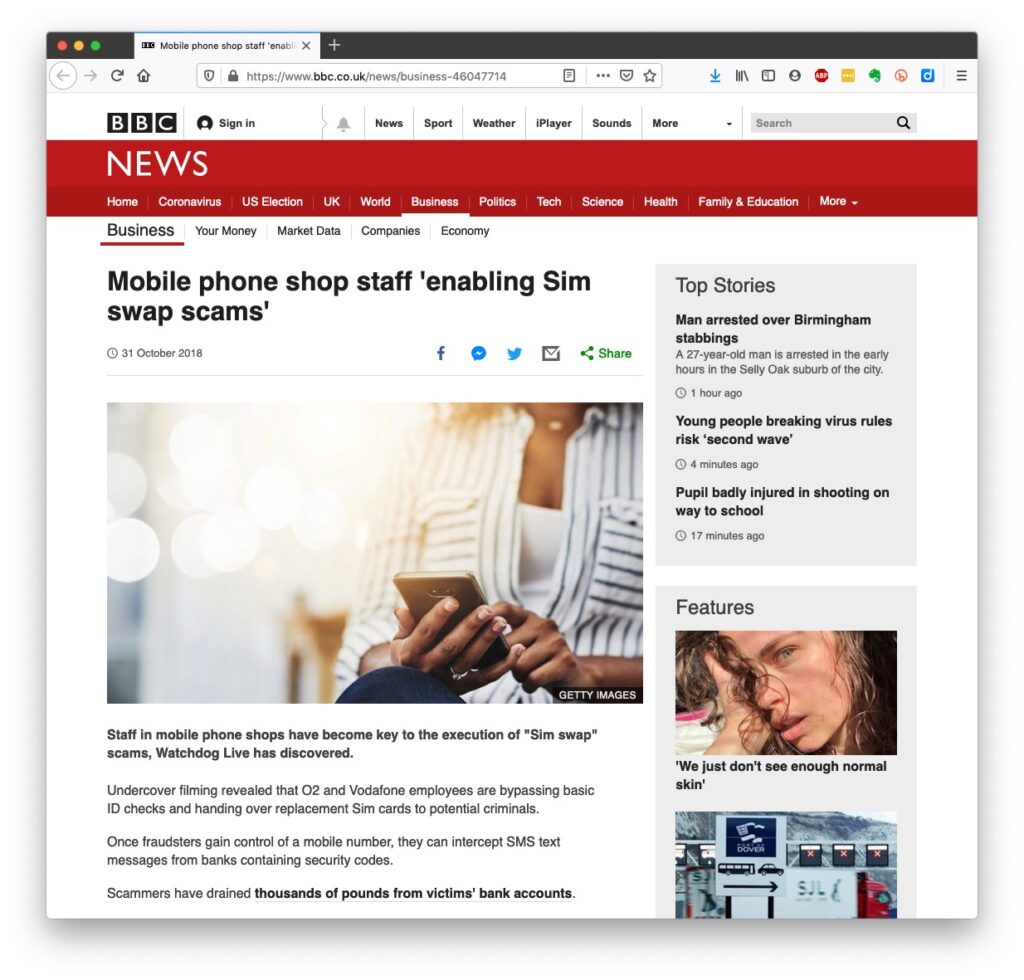
Banks are also often supplying software free (or at reduced cost) for you to install to protect your machine, to protect you from fraud – and of course themselves from having to pay out! I was recently offered a piece of software called Malwarebytes by the NatWest and although I have an Apple Mac computer which are well known to be relatively secure from Viruses, Spyware, Trojans and other malware, I installed it. I was pleased to note that I didn’t have any malware on the machine. Surprisingly you might think … it’s safer to use the mobile app on your phone, or tablet to do online banking and retail purchases than a web browser. This is because the app on the mobile device has to be verified by Google for Android (Google Play Store) or Apple for iOS/iPadOS (Apple Store). Whereas a browser could be infected, or compromised with malware. [That’s something I’ve learnt whilst preparing this post!!!] When you’re out and about and NEED to do an online transaction from your mobile – use cellular rather than WiFi. The latter can be really open to “sniffers”. [I must admit I try to avoid doing online transactions when away from a domestic network.] Alternatively consider buying and installing Virtual Private Network (VPN) software, such as NordNet so that you can use the free public WiFi in a public area. You can find out a whole lot about the range of scams at the NatWest’s Security Centre. However the most scary scam I’ve been made aware of is one that befell a member of my family when they were distracted sufficiently to become the victim of SIM swapping.
I’ve discussed this with you before and you can  read the updated post here. I also covered this issue in another post which involved stealing a phone, to obtain access to your identity and commit fraud, and we covered the even more disturbing theft of a credit card with the complicity of the US Postal service to obtain a SIM in a recent meeting as well.

What should you do to protect yourself?

Some of these pieces of advice are really quite straightforward, but some require some intervention by yourselves.
  • Keep your operating software up to date. This is particularly true if you’re a Windows user, and even more true if you are still running an older version of Windows than Windows 10. If you’re using Windows XP, Windows Vista or even Windows 7 you should seriously consider disconnecting your machine from the internet because even if you’ve got anti-malware software running this is probably not protecting you against the latest threats.
  • Install anti-malware, or anti-virus software, particularly if you’re a Windows user. Don’t pay more than you need to. Windows Defender from Microsoft is Free and for our demographic relatively undemanding and unsophisticated users, more than sufficient. Keep it up-to-date as well! [As I said previously, your bank might be offering free software as well.]
  • Keep the software you use regularly up to date as well. Consider removing any software from your machine that you don’t use – this is because software vulnerabilities are discovered sometimes quite a while after the software was first released. It will also save you disc space!
  • Be cautious over installing extensions into your browser. These are often extremely useful and valuable tools, ie password managers, Dropbox, note taking, Google Back up and Sync, but if you don’t get them from the official sources then you might be importing vulnerabilities, eg spyware and trojans to your system.
  • Very seriously consider logging-out from social media and other retail sites when you’ve finished using them, especially Facebook, you just don’t know what tracking and logging of what you do, even where you are, if you leave yourself logged in on a mobile device.
  • Free software is both a boon and a curse. Only download open source software from a reputable site such as Softpedia, and never try and get proprietary software for free. Read this article about Free download sites if you want to know more.
  • Remember the golden rule 1 – if it seems too good to be true, it probably is, so steer clear!
  • Remember the golden rule 2 – don’t speak to strangers (an oldie but goldie that one); in other words if you don’t know where an email has come from – ignore it; if the website address looks a little strange – do an internet search on the company or organisation to check if the address you’re looking at is a spoof of the proper one.
  • Have more than one email address. Use one as your personal address, then use other ones that you can “throw away”when you need to register to a website, but you’re unlikely ever to go back to it again. Or have an email address (UserID) specifically for online purchases. Splitting things like this reduces the risk of you being the victim of fraud.
  • Seriously consider using an email service that is NOT connected to your Internet Service Provider (ISP). If you decide to change your ISP, and you should review them periodically, then you will have real problems if your email address is linked to their service!
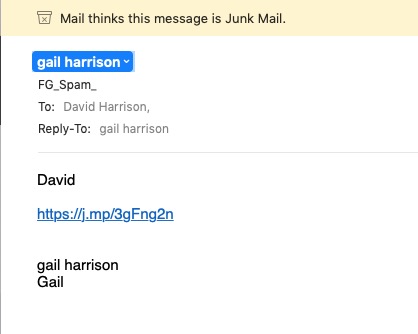
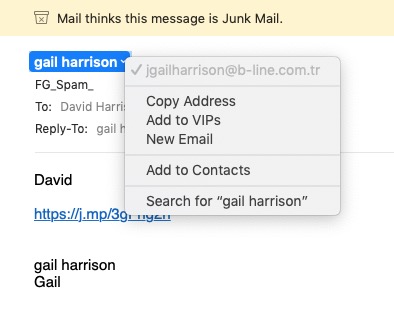
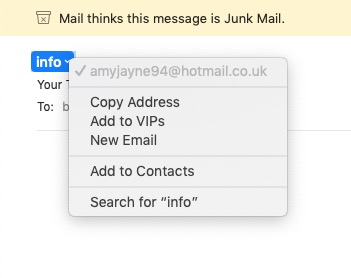
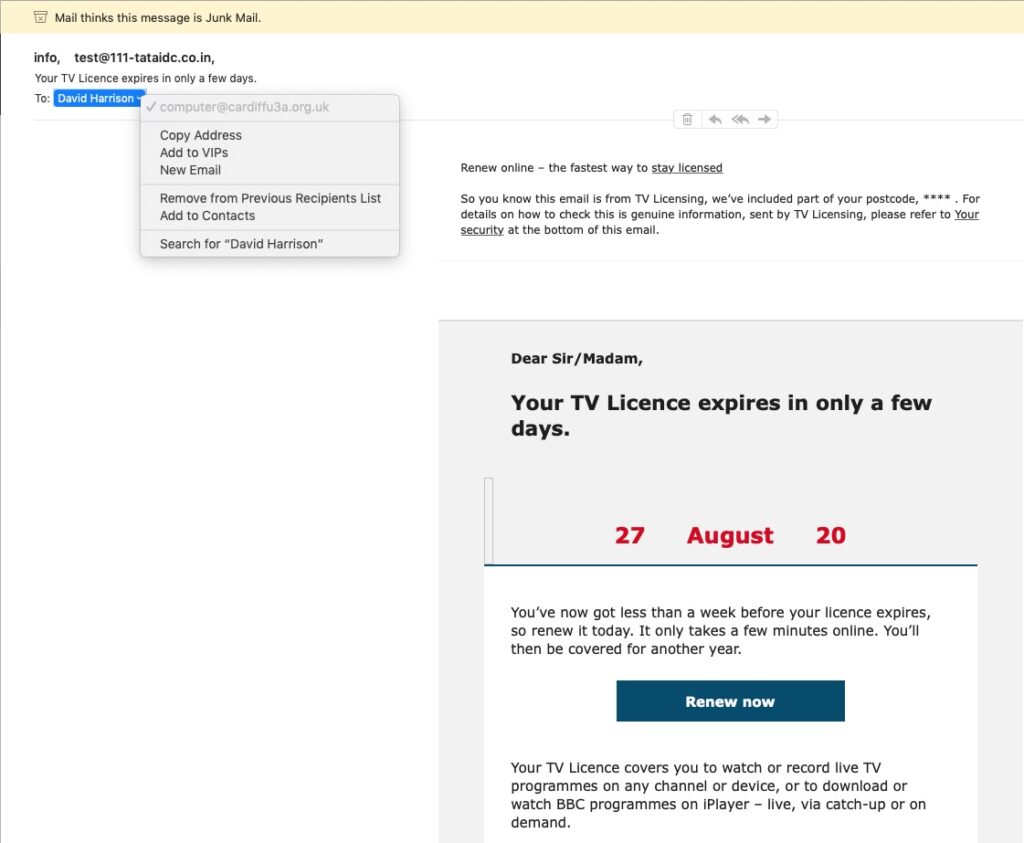
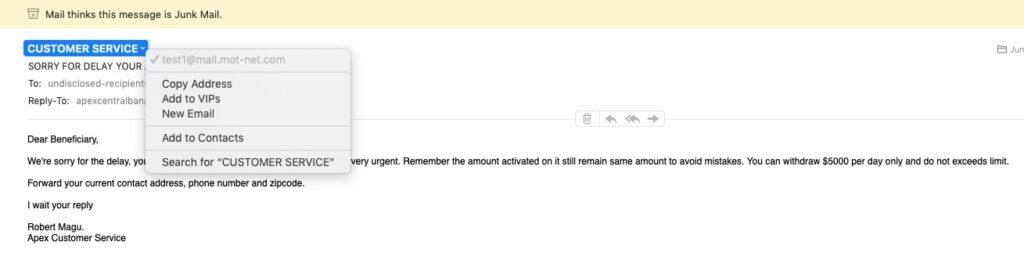
  • You’ve got Spam filters running? Of course you have – but you better check! Probably your ISP, or email provider (eg Gmail, Yahoo, Microsoft Outlook or Hotmail) is filtering out what it thinks is spam, but occasionally some gets through. If that’s the case then you can always look at the real sender of your message. Take a look at the examples below …
You can also apply filters to divert incoming email into different folders in your email system. That reduces the amount of Junk that you need to review. [I’ve also advocated using the “native” email application for your device rather than rely on the web-based service the email provider has. Thus on a Windows device – use Windows Mail (or Outlook); on a Mac use Mail. You can then easily synchronise your email between devices from multiple email accounts. Tidy!]

So we come to Passwords …

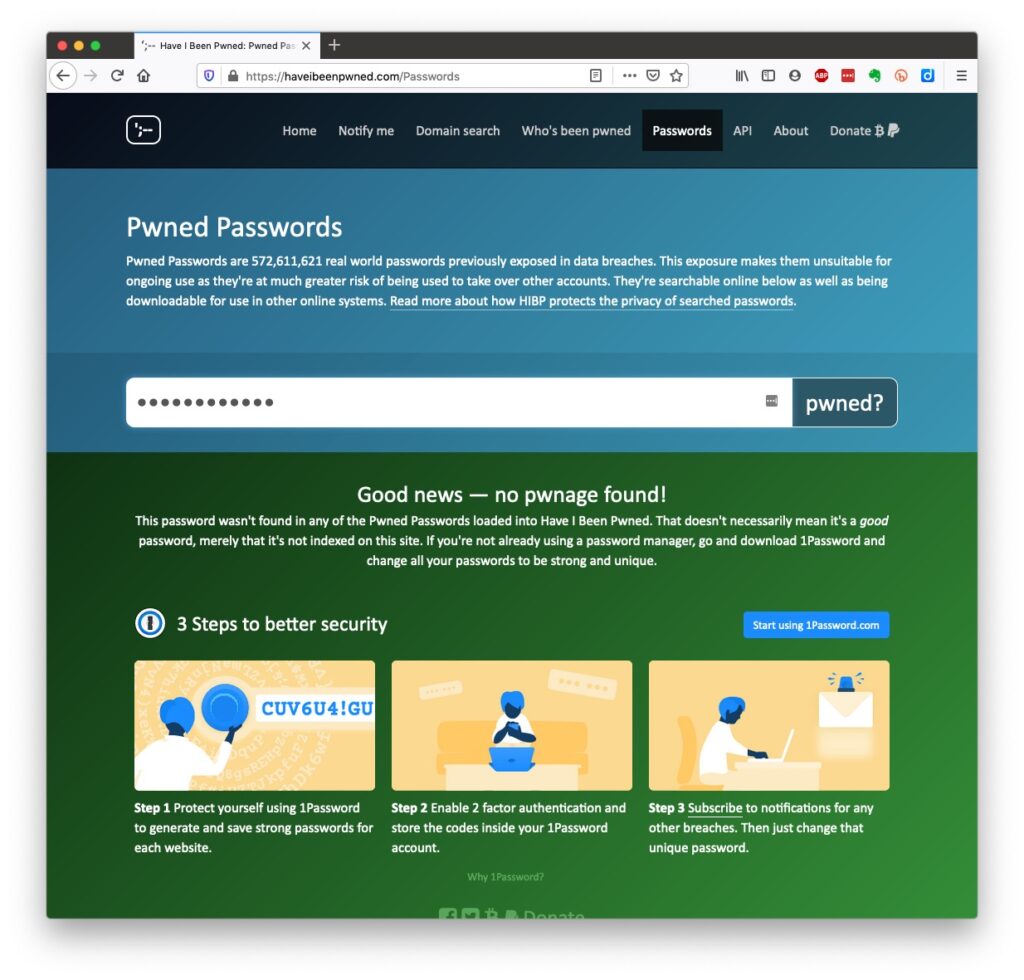
… this is the point at which you need to consider intervention and changing your behaviour! You might also need to do a fair bit of work, but it’s worth it if you want to have a secure internet experience. Let’s just see what using an insecure Password can lay yourself open to. Type in the word Password, or ABC123 from the link above – frightening eh!?
The most common password I use – and I know I shouldn’t reuse the same password, but I am human – has not been discovered on any pwned site. Phew!
What about the combination of your email address with your password – has that been “pwned” (ie stolen through a data breach)? Try typing your email address into the link above.
Oh no! I’ve been pwned … but it was a long time ago and I’ve changed my password many times since then!
Ah! That’s better – my “throwaway” email and passwords are “safe”!
And if you want to see a list of which websites have been breached, it’s alarmingly long! So … use a unique password for everywhere you sign on. There’s lots of tricks to achieve this; some of which I wrote about in a post quite a long time ago …
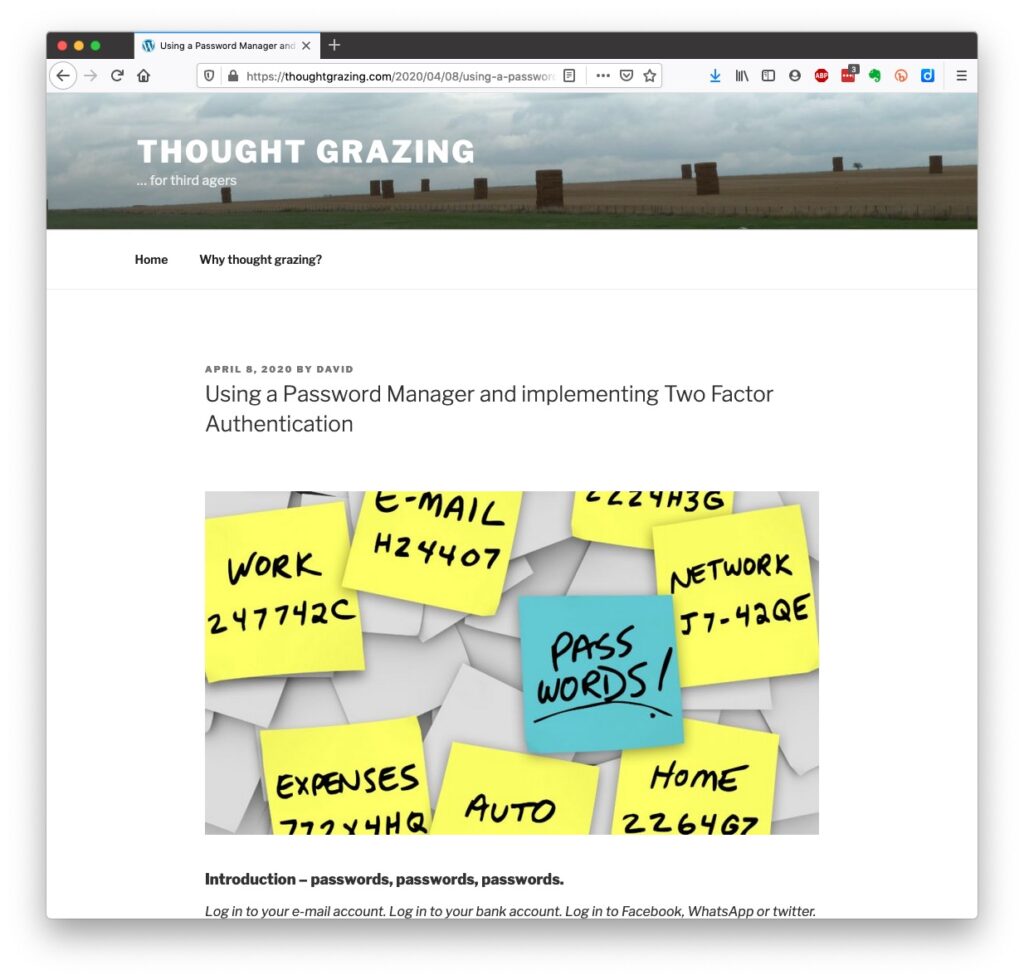
… but the real change of behaviour is to use a Password Manager – again I wrote about this a little while ago and linked it to using Two Factor Authentication, which is also covered in the same post …

Password managers

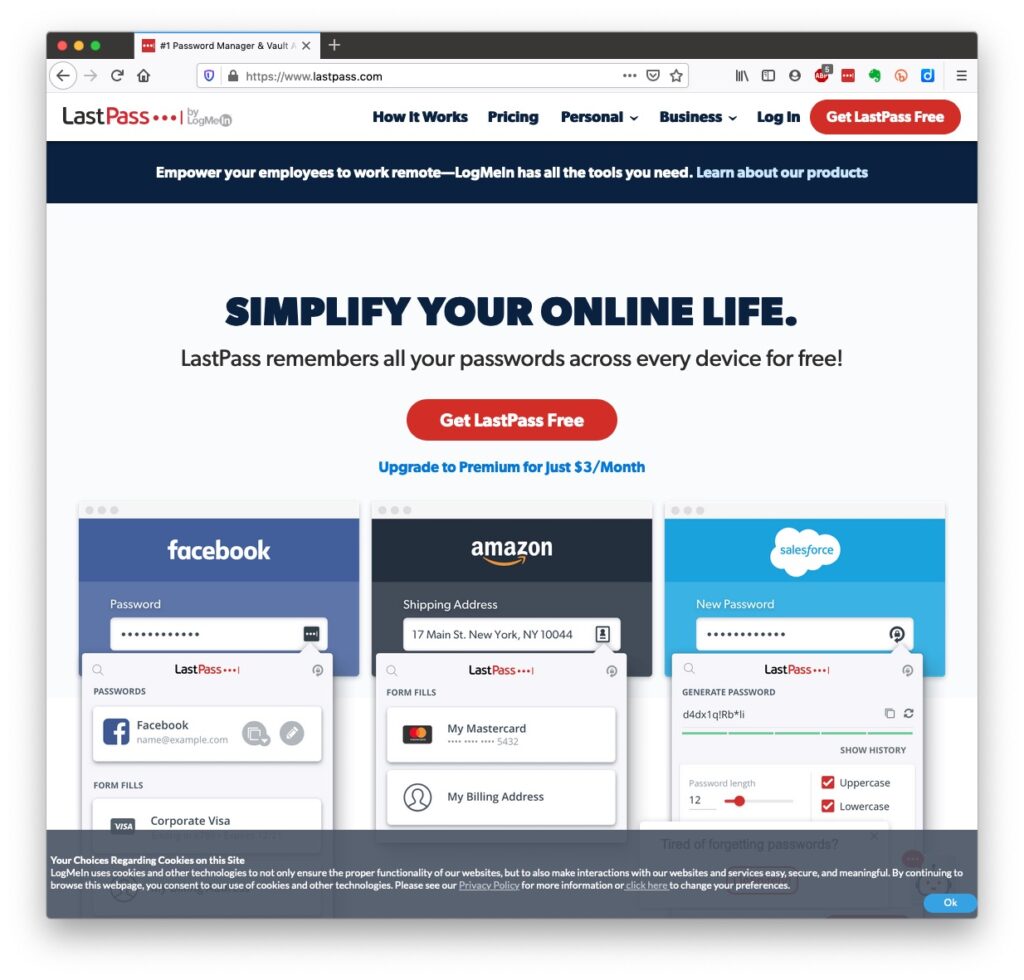
I still use LastPass, but as a back-up and archive of my old passwords. I now use Keychain as I only have Apple devices (as do most of my family, and so it makes sense to use a system that is linked to the hardware I use. Other common password managers  are Dashlane and 1Password. Please make up your own minds after reading some Reviews and seriously consider using one.
An authoritative article on using Password Managers is provided by the National Cyber Security Research Centre. They also give an opinion on whether you should use the browser offered option to save your passwords.

However … the future is Passkeys

The major tech companies – Microsoft, Google and Apple amongst them, have been working in alliance on a project called FIDO that will mean the combination of UserID and Password can be consigned to the waste basket. This article explains what they are, and what it means for us really well. Although Apple stole a lead, announcing their implementation a year ago, Google has now launched it’s implementation, and this article describes how to set them up on your Google account. Microsoft also allow a password-less way forward, but I’m not clear on how to set it up – not being a M$ user. On Apple – here’s how you set up Passkeys on your iPhone, iPad and Mac. Another reason why I chose to move from LastPass to Keychain. Whilst if you’re a 1Password user, you can combine your legacy use of a Password Manager with Passkeys, and these will also work much better together on your iPhone. Watch out for an announcement shortly! [NB It is possible to move between password managers, ie from LastPass to 1Password.] And that’s about it for this year. We can look forward to much more about Passkeys in the coming 12 months; much more about GDPR and how the UK government’s online security legislation is reviewed (and hopefully revised) before implementation; much more about “big tech” and corporations re-acting to whether they are responsible for content, or are just a platform providing a service, rather than a publisher. Interesting times!

Slides from talk given to Bridgend U3A

Keeping safe online

Slides from talk given to Cardiff U3A

Staying safe online

References

These may not be available in your Public Library, hopefully that isn’t the case.
… but these are available … Which? webpages – Scams & older people I seriously do recommend signing up for the Which? Scam Alert Service – sign up for an email alert – and I seriously recommend you NOT broadcasting other people’s warnings to you about scams; they could be old, they could be inaccurate, they could be scams in themselves. Look on the Age UK webpages – Staying safe in your digital world and specifically How to stay safe online Your bank will undoubtedly have Internet Security webpages. Mine has a Security Centre web presence and particularly they provide a number of Fraud Guides I could give a million references to changing your privacy settings on Social Media, but here are a couple relating to Facebook, perhaps the most challenging service of the lot. First – what Facebook unchallenged will want to get from you. You are able to disable (prevent) all or some of these … Sign up for Facebook – this is not sign-up site, it’s just one to educate you on the privacy you might give up without realising before you sign up (but of course you can run the checklist at any time); then How to change settings on Facebook and finally Securing Facebook: Keep your data safe with these privacy settings.