What does JPEG actually do? (in camera)

I watched this video recently about a subject that frequently crops up in Photography on the nature of JPEG compression, and just how much compression should be applied, and what resolution you should use (in camera) if you’re a JPEG-shooter.

Even though the video was a bit turgid in places, it got me to thinking about what a JPEG image looks like coming out of my camera against the RAW image I process. I watched it right to the end which showed some sticking power. I’ll give you what I interpreted as the main points of interest.

Pixels are more important than the Quality slider when saving a JPEG for the best image. So save with loads of Pixels – original number if possible, don’t drop the resolution therefore – and use a lower quality setting to reduce image size if that’s an issue for the card in your camera. Then in post-production, as suggested in what I consider (imho) to be the best written expose of JPEG and Lightroom by Friedl, when you drop below 72-80% quality (compression) there’s not much decrease in image size, and very little drop-off in visual presentation.

I’m fortunate to have two card slots in the Sony A7r MkIII and have set it up so that a JPEG image is sent to the second slot. This image is configurable by Quality (ie resolution – X-Fine, Fine, Standard) and Size (ie relating to the amount of compression applied – high 42m, medium 18m and small 11m). I thought it might be interesting to see what the images looked like when taken in a challenging lighting situation that required ISO 4000 to get a shot at 1/60@f4 on a 24mm lens. I thought I’d look at the RAW image as well to see how “superior” it was!!!
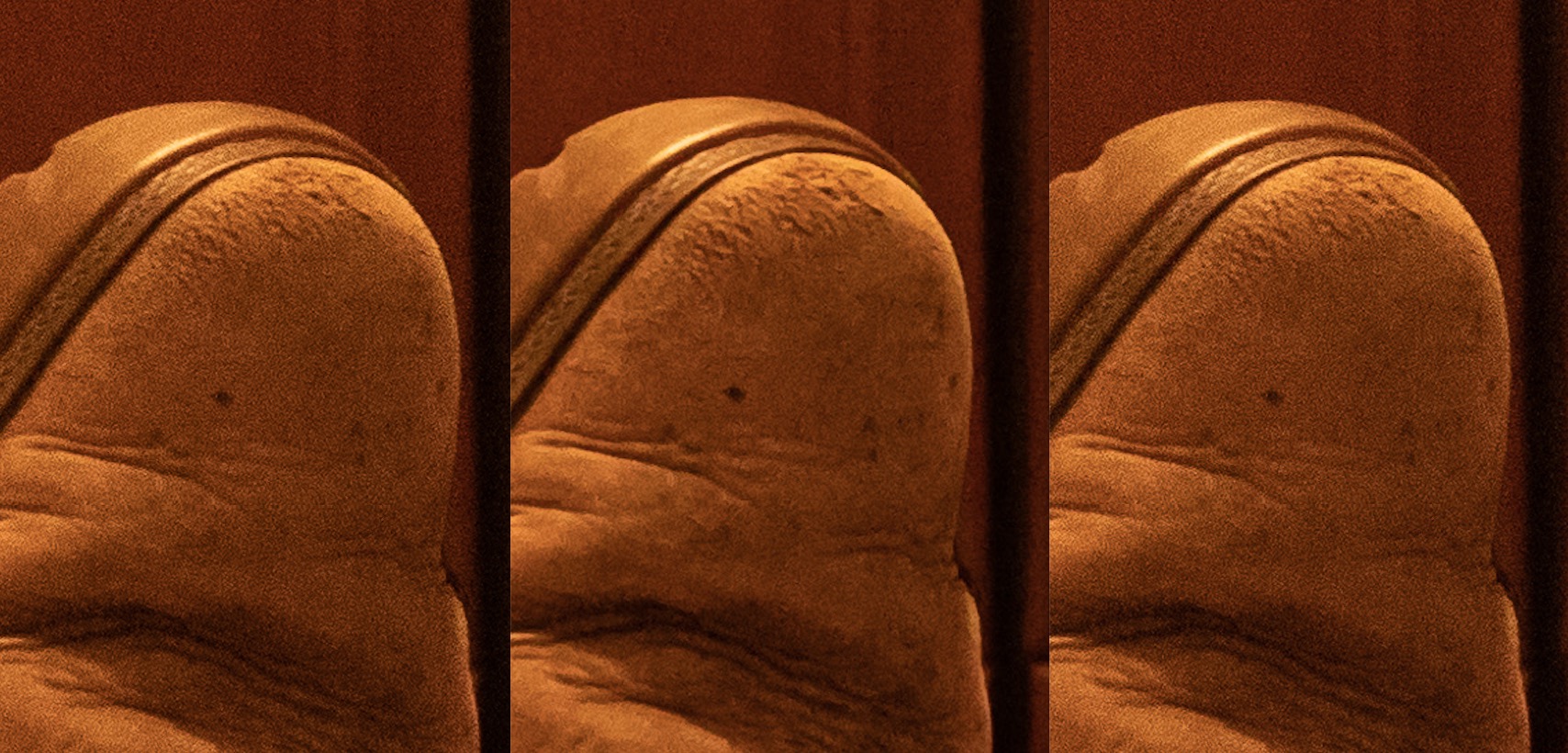
Well that was interesting. Out of the camera all the JPEG images were sharper and that really puzzled me. Why? It took me a short while to realise that I’d forgotten the reason why I shot in RAW in the first place. Duh! RAW just captures what the camera sees. It doesn’t apply any corrections. It just sees the image and records it. Phew! I realised I had to look at Noise Reduction and Sharpening to get the RAW image close to what the JPEG was giving me, but I have to admit the JPEG taken at Xtra-Fine and High gave a very good image straight out of the camera (that’s the one on the right above), and if I didn’t want to do any post-processing, I’d have been happy with it.

[Note the shot on the left is the unprocessed RAW image saved with no compression; the one in the centre is the processed RAW image at 80% quality (compression)]

Some statistics for the JPEG shots:

Size of image from camera Original Resolution Cropped Resolution Saved at 80% compression Saved at 100% (no) compression
XF-H 23.4MB 7952×5304 2137×2137 946KB 2.8MB
XF-S 7.3MB 3984×2656 1070×1070 365KB 886KB
Std-H 7.6MB 7952×7952 2102×2102 901KB 2.4MB
Std-S 2.7MB 3984×2656 1088×1088 384KB 824KB

Key:
XF = Xtra-Fine (high resolution)
Std = “standard” resolution
H = High File Size (ie little compression to reduce file size)
S = Small (ie considerable compression to reduce file size)

I cropped all the images including the RAW image (originally 85.8Mb in size) to a square to get a comparable image at each resolution. For the RAW image this was 2126×2126 – comparable with the XF-L and Std-L JPEG images. I then saved the images at 80% Quality and 100% Quality (ie no compression) in Lightroom. For the RAW file this gave figures of 4.9Mb for the 100% Quality, and 1.5Mb for the 80% Quality. So you end up getting a JPEG from a RAW file (at this resolution) that is not greatly different from the JPEG taken from the camera.

How did I get the RAW to outperform the JPEG? I had to look at a number of sliders in Lightroom. Starting with Noise Reduction and then moving on to using Texture to arrive at an image that I liked. So the question is … is it worth using JPEG to just capture the moment. The answer is most definitely YES. I’ve always said that, and this piece of empirical research suggests that JPEG in the Sony camera is very good at noise reduction and sharpening. You may lose the colour information and the tones are not represented quite as well; but in this poor lighting situation where the ISO is very high (ISO 4000) the quality of the JPEG image is very good. So, armed with this information I just need to make a decision on how I set the camera up. Do I want to save a JPEG image as a backup to the RAW, in which case I need to set it to XF-H (in my notation), or for taking the card out of the camera to share on social media, in which case I would probably set the camera to record the JPEG shot as a Std-S image.

These are some of the test shots taken whilst I had my feet up! You can download the originals from the [Download] link under the photo if you want to more closely examine them.

The uncropped Std-S JPEG image saved at 100% [Download]

The cropped JPEG image saved from Lr at 100% reducing the file size to 2.8Mb; a loss of detail, but generally excellent noise reduction. [Download]

The cropped RAW image, grain and noise present because of high ISO [Download]

The finished RAW image at 80% Quality, after Noise Reduction – luminance and sharpening applied, as well as a bit of Texture added. Image size now 1.7Mb reduced from 6.4Mb cropped image. [Download]

So a final conclusion … if you’re a JPEG-man, I guess you should do the minimum amount of compression in camera, and you should shoot at the highest possible resolution. Then in post-processing you can safely save your JPEG at a reasonably high-rate of compression (lower quality setting) whilst keeping the resolution as high as you can. Does that rather obvious statement make sense?
Lr Mobile – moving on!

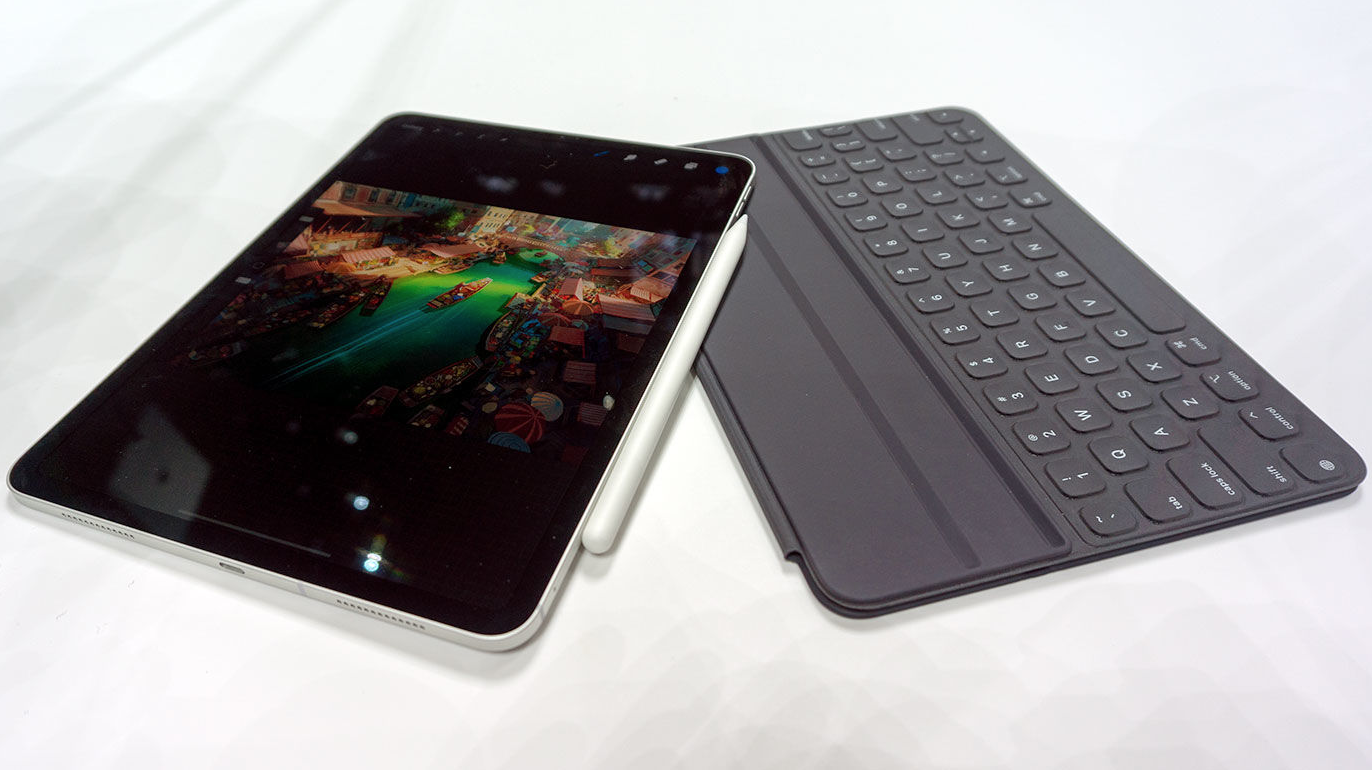
Following my last post on the subject – Lightroom on the move – biting the bullet – I thought it might be useful to record my experiences with using Lr Mobile and my iPad Mini 4 on a recent trip, so that if I should ever be tempted back to using Lr Mobile, I’d have a benchmark to measure the progress of the software against.

Let’s start with some background, just in case a reader (is there anybody out there – to quote “The Boss”) hasn’t read previous posts. This thread started with a post written by Nicole Young – that prompted me to try an experiment travelling without my laptop. That didn’t work well for me initially, but I determined to have another go, which I wrote up in the post – Travelling with my camera and without my MacBook Pro – which also didn’t go too well either!

Now call me a fool (if you will), but having learnt a little more about Lr Mobile (I know it’s not called Lr Mobile, but I need to call it something other than just plain Lightroom – because that’s what Lightroom Classic really is – I’m oldskool), I thought I ought to try it again.
Some starting points …

I decided to set up my Sony A7rIII to use SD-Card Slot 1 for RAW and Slot 2 for JPEG. My reasoning here was that I thought I could upload from the Slot 2 Card to my iPhone for sharing images on WhatsApp etc. This worked fine – no need for Lr Mobile at all for this. Just the SD-Card; an Apple Lightning -> SD-Card Adapter AND an iPhone 6s.

These images also automatically synced to Google Photos where I created an Album to Share with Family. Happy days!

However …

Although the upload to the iOS Photos app worked fine, my External Lacie SSD Hard Drive doesn’t seem to be working with this iPhone using a powered Lightning -> USB 3 Adapter; the drive wasn’t recognised in the Files app, thus I couldn’t Export from the Camera Roll onto the external hard drive. Is this a Lacie fault, or is the iPhone 6s too old? I have to investigate this and will report back later!

Why was this a problem? Well the JPEG Images uploaded to iPhone from SD-card Slot 2 to share from the iPhone were been merged with native JPEG images taken on the iPhone. I couldn’t distinguish where they were coming from. This might not be a problem for some people but the Sony JPEGs were not supposed to replace the RAW images that I was examining in Lr Mobile!

There doesn’t appear to be an easy way to separate them. There are no filtering options in either Apple Photos, or Google Photos. How then do I merge iPhone JPEGs into my Lr Classic catalog?

I can’t find a search on filename available on the phone – there might be in iCloud from a web browser, but I haven’t researched that … yet!

This “problem” was solved by loading JPEGs into another space on my hard disk, not into my regular Images folder, then Adding them into my Lr Classic Catalog (not Moving or Copying), selecting the iPhone photos from the Sony JPEGs using a filter, and removing the Sony JPEGs from Catalog, then Moving the remaining JPEGs into the regular Images folder on my External SSD into the newly created and correctly titled folders in my Catalog BEFORE doing the Import of the RAW image files from the SD-card that had been in Slot 1. [Not forgetting to delete the Sony JPEGS from the other location to avoid clutter!] All an annoyance that makes the workflow tedious!

I also encountered other problems ..

The keywording options available in Lr Mobile are rudimentary and I don’t believe you can create a Preset to apply metadata at the time of the RAW import into Lr Mobile. It can only be done individually to an image. This meant I had to go through the whole collection and tag separately in Lr Classic after the images had been Synced (or in my case Imported as I had abandoned Syncing for the reasons given in my concluding remarks below).  At least I could Select and Tag in Lr Classic, which I couldn’t in Lr Mobile! Another annoyance.

Even though I decided to use Compressed RAW in the camera, I ran out of space on the iPad Mini 4 – I would need to upgrade to a new iPad Pro (or a new MacBook). Also, the Lacie SSD didn’t work on the iPad either … again, is this a question of old kit, or a Lacie problem – I need to follow this one up.

I quickly ran out of Creative Cloud space – 20GB definitely not enough, even when using the “Delete folder (saved for 60 days)” trick! See below, a note I wrote to myself on table-top experiments with Lr Mobile before I left …

Quick note after using “web-enabled” Lightroom last night. It took very little time to sync both iPhone and Camera (using card reader connected to iPad) up to the cloud – 45 photos. I remembered to switch off Sync as well!!!! It took a couple of minuted to then sync to the desktop this morning. What was interesting however was that when I switched on Lightroom Classic, the application already knew how much of my Creative Cloud storage was being used – 1.59Gb for 45 pictures.

I must say now that I’ve got used to it, it’s much more straightforward than I though to use the Syncing with Lightroom Cloud. I particularly like the way that photos taken yesterday with my iPhone have been easily integrated into the workflow. One thing to note however which I forgot to cover … you need to switch off Syncing from the Lightroom Classic Collection (Albums in Lightroom) by clicking on the double-facing arrow against the Collection, and then perhaps (if you use Collections in Lightroom Classic) move the Collection to a different place. Also, your final task should be to Delete the photos from the Creative Cloud storage by clicking on All Synced Photographs (in Catalog panel) – and deleting them; as long as Sync is still enabled they’ll be deleted from your Creative Cloud storage allocation. You should then Pause Syncing. Remember however that everything you Delete will still be in the Deleted storage in Creative Cloud, and will stay there for 60days without counting against your storage allocation. That’s all. I’ll try and get round to amending the notes tomorrow to add these points.

However, unlike the experience when syncing at home, syncing in the wild was slow and not a realistic way of saving local storage. Also syncing when I got home was temperamental and I waited for some time, and then gave up, attempting to get a connection to Creative Cloud from my desktop. Things have to work smoothly and not rely on “clever” kludges or workarounds!

At one time I thought there was duplication in Google Photos due to Backup and Sync but this does not appear to be the case. It’s just a delay issue in refreshing the caches I suspect.

So a conclusion …

I would have to upgrade my Apple kit to get Lr Mobile to work for me. Does that mean a new iPad Pro? Or a new MacBook Air?? But I don’t need either as my MacBook Pro works well – it’s just heavy. I do however probably need to review whether getting a new iPhone sometime soon might be a good idea – improved camera(s), connection to external SSD, etc. A cautionary wait and see is probably in order but currently a new iPhone would seem a better way forward.

I do not like the Default Sync setting which means you have to remember to switch Syncing Off  after an upload. This also reverts back to being the default when the Software is upgraded. It is really the wrong Default and Adobe should review this.

I do not like the lack of Selection in Lr Mobile. You should be able to Select what you want to Sync – not everything. What’s the point of having the ability of selecting the Collection you want to Sync from Lr Classic to an Album in Creative Cloud, if you can’t do exactly the reverse from Lr Mobile to Lr Classic. It doesn’t make sense and the phrase “hammer and nut” comes to mind; plus of course “upgrade to more Creative Cloud storage needed”, and more dosh for Adobe!

The inability to Select and Keyword a group of images is also a drawback to me; as is the absence of Colour Labels – which I use a lot.

So I have decided NOT to sync. photos from the iPad using Lr Mobile. I could not get a quick and reliable Connection. I will however keep watching for developments from Adobe that might encourage me to have another try. I will continue to use Lr Mobile in one situation – that of integrating native JPEG iPhone Photos into Lightroom Collections. That might be a useful addition to my workflow if I get a new shiny iPhone. This “use case” seems to be what Lr Mobile should be good at!!!