![Travelling with my camera and without my MacBook Pro [Updated]](https://just-thoughts.com/wp-content/uploads/2019/06/ipad_pro_2018_review2.png)
Updated: After my recent trip I’ve decided AGAINST using the iPad (Pro or otherwise) in the manner described in this post, for reasons detailed at the bottom of the post. In time maybe I’ll re-visit this workflow but for now because I’m committed to using the Desktop and my MacBook Pro, adding an additional workflow is creating just too much additional technology which is unnecessary. If the laptop should need replacing, I’ll consider then whether the iPad Pro is a suitable replacement, but I’m not going to change my workflow until then! Interesting experiment though. I will however be using this workflow as the principal means of getting images from my iPhone into Lightroom.
This post has been a long time in the writing, it’s taken a long time to grasp the nettle and see just how I could incorporate Lightroom CC (the former Lightroom Mobile) into my workflow when my main editing and organising activity is centred around using the desktop version of Lightroom – now called Classic. Of course, I’ve written about my Workflow using Lightroom on more than one occasion 🙂
The main reason for wanting to do this is weight when travelling; I’d much prefer to carry another lens (or two) on to the plane rather than lug 2kg+++ of MacBook Pro, plus rugged external hard-disk with me. I’ve also found that I really only want to do some basic editing whilst I’m away from my desktop system, so just being able to review photos, rate them, do minor corrections to then enable me to post/share online immediately to friends and family, is all I want/need to do. I’d rather be enjoying the company of my travelling companion(s) … and the wine of course.
If I could reduce the weight of computing gear down to something close to the 330gm of my iPad mini 4, that would be a huge saving and it would reduce the bulk of my carry-on camera bag as well.
I’ve played around with syncing Collections and Albums in Lightroom CC without really knowing what I was doing and with ZERO commitment to making it part of my workflow until I began to think … perhaps I should consider replacing my ageing MacBook Pro with the new iPad Pro (2018) with a folio keyboard and Apple Pencil, etc etc.
It was then that I came across this article written by Nicole Young which ticked all the boxes and answered all my questions and doubts and persuaded me, in the first instance – before shelling out the dosh for a new iPad Pro – to try the workflow on a forthcoming trip with my iPad Mini 4.
So I hope Nicole won’t object, but I’m going to follow the organisation and structure of her article and use a lot of her original text, with my local variations, and a few additions to clarify for myself what it is I’m actually doing, and enable me to remember how I was setting my gear up, and why … documentation, sort of.
Here’s what’s covered in this article
- Setting up Lightroom CC and Lightroom Classic to seamlessly sync files together after first clearing my iPad of unnecessary files to increase it’s capacity to store the images I take whilst travelling
- Using Lightroom Classic as the primary photo catalog, while also using Lightroom CC while traveling
- Describing the workflow I will follow whilst travelling to import, sort and edit my images
- Incorporating images taken from my iPhone 6s into the workflow so that the ones I choose also appear in my Lightroom Classic catalog
- Importing and syncing images from the iPad into the desktop catalog of Lightroom Classic without losing any edits, metadata or organisation structure
So what gear am I using
I subscribe to the Adobe Photography Plan – it costs me £9.98 a month (although I note that it’s on a promotional offer at the moment, no doubt because of Adobe’s recent PR disaster on trialling a more expensive option), so that gives me Lightroom Classic and Lightroom CC – both of which are kept up to the current releases. With this plan, I only have 20Gb of cloud storage with Adobe. So I believe I will need to consider upgrading to 1Tb of storage for the syncing to work.
I have Apple’s SD Card reader to Lightning connector cable for the iPad, but I will also test connecting my Sony A7r III both by USB-C connection, and WiFi to the iPad – the results of that testing will appear as a note at the bottom of this post, at a later date.
My iPad mini 4 is modest in storage capacity at 128Gb, but is ample for the number of photos I expect to take on any trip. [I’ve calculated that if I have 64Gb of “free” storage in the iPad, and I shoot at 42Mp RAW images, I should be able to store c.1500 images on the iPad. If I run out of space, or have miscalculated, I have plenty of SD cards and I’ll just have to wait until I get home to load them into Lightroom Classic, and I will have to reconsider my options.]
UPDATE: Massive news from Apple’s WWDC 2019 event yesterday (3rd June) is that support for external drives through the USB-C port comes to their new iPadOS 13, to be released in the autumn. This makes purchasing an iPad Pro even more appealing as it will also be able to support an external mouse or trackpad, as well as Apple Pencil. This will mean that there will be another way to get images off the latest iPads other than WiFi and sync to Adobe Creative Cloud. I need to wait and see on this one as only USB-C is explicitly mentioned; so maybe my iPad Mini 4 which will run iPadOS but has a Lightning port not a USB-C one will not have that export capability. Then of course we have to wait and see how Adobe will respond to, or even possibly assist, Lightroom Classic users in providing a different method of getting files off the iPad. Prevent, or enable – I guess I know which way Adobe will go!
My iMac (27-inch, Late 2013) is running the latest version of MacOs (Mojave) has 16Gb RAM, and the catalog and images are stored on an external 1Tb SSD (from Crucial) in an Inateck housing. I use TimeMachine to backup my iMac, and the external SSD when connected. I keep a separate Annual backup on another SSD, which has (up until now) allowed me to travel with another Rugged SSD which just holds the images for the Previous and Current years. All external SSDs are named Photos – that enables ease of switching disks for use by Lightroom Classic. A change in strategy to using Lightroom CC and the iPad will obviate the need for this external SSD and so reduce weight and space taken-up in the camera bag.
What needs to be done before I travel
A few edits need to be done to the preferences on my iMac. Because I primarily use Lightroom Classic, I want to make sure that the photos I import will be added to my main external hard-drive automatically upon returning home.
By default the Lightroom CC files are automatically synced to a folder within my main HD:
iMac > Macintosh HD > Users > [username] > Pictures > Lightroom
However, I wanted to change the default to an external folder:
iMac > [external HD] > [folder name]
Here’s how to change the default Lightroom sync import folder:
- Go to Lightroom > Preferences > Lightroom Sync
- Change the location of the default folder to wherever you want the photos stored. In my case, I created a new folder called “Lightroom CC imports” on my Crucial SSD called “Photos”.
Note: You can also do this quickly by locating a folder within your Folders panel, right-click it, and then select “Set as Lightroom CC Downloads location”
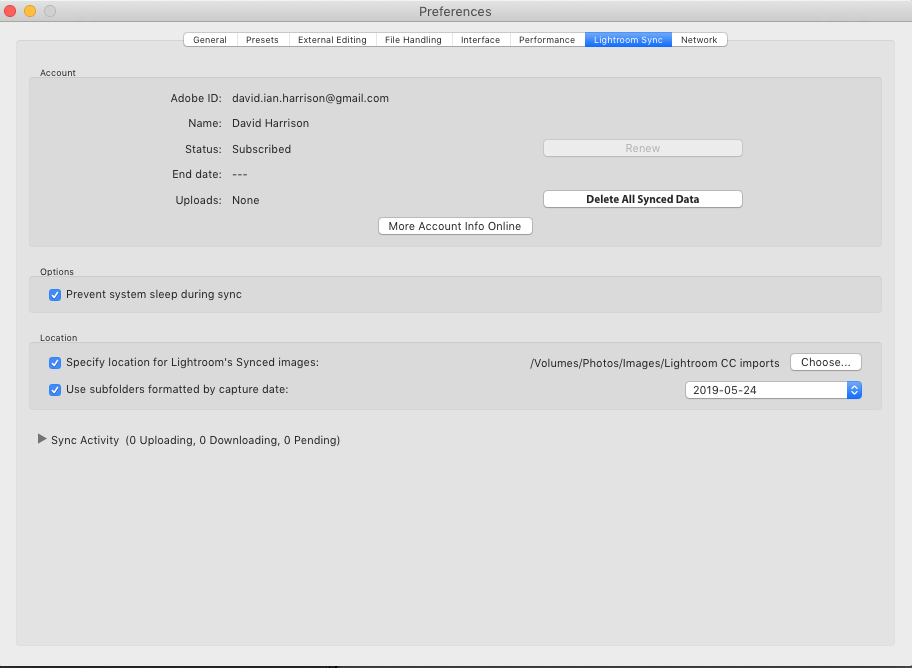
Once I get home, I will still need to move the photos into a different folder to organise my files properly. However, doing this ensures that the synced files from my iPad are imported into the proper volume from the beginning, where I know I have enough hard-drive space to hold them.
Turn off iCloud Photo Sync on the iPad
I checked to make sure that the iCloud photo sync is turned off on my iPad to avoid the images syncing over to my iPhone as well, as this would happen automatically given a decent WiFi network!
To turn off iCloud photo sync, first go here:
Settings > Username (top level in the settings) > iCloud > Photos
Then make sure that the toggle for iCloud Photos is turned off, I’ve left My Photo Stream switched on because that doesn’t impact on iPad storage capacity and it does allow me to see any images taken on my iPhone on the iPad.
I also checked to see whether Backup and Sync was switched-off on the iPad for Google Photos, I really had no desire to blow my Google Drive storage limit with huge RAW files – if I’d left it at the original size option, and no real purpose in keeping the “Free size” ones either.
Last steps in setting-up Lightroom CC for travel
Before you import your photos into the iPad, it’s a good idea to first go into the Lightroom CC app and set up a folder that auto-imports your images. This will save you a LOT of hassle in trying to add your photos to Lightroom when you will be importing photos from a multi-day trip (especially if you don’t format your SD cards regularly). [NB The screen shots are taken from Nicole’s blogpost and re-used with my thanks.]
STEP 0 – Switch off Sync on your iPad
I’ve added this step because it occurred to me that you don’t necessarily want the syncing to Creative Cloud to start automatically when you return to the WiFi in your hotel room. Not only will the upload probably be quite slow, but it might cost you money. So go to the Cloud icon in the app and Pause Syncing. When you’re ready go back and Resume Syncing.
STEP 1 — Set up an “Import Album”:
- First, open Lightroom CC on your tablet.
- You need to create a main Folder for your event – this is done from the “+” sign next to Albums. [NB The folder for Nicole’s trip was titled “SE Asia 2018”.]
- You then create an Album within this folder and give it a title. She simply titled hers “0 – Imports” to make it easy to locate the files.
- Then click on the … to the right of this album name (to open up the options) and turn on the “Auto Import from Camera Roll” option. Now when you follow the steps below, the photos will automatically import into this folder from your camera roll. [It is important to remember that this has to be repeated for every Folder that’s created. Each one will need to have a “0 – Imports” album.

STEP 2 — Import the files to your iPad from a SD Card:
Now, after you’ve created some photos with your camera, use the steps below to import the files into your tablet. I do this about once per day, and then format the card in camera. The Sony A7rIII has a second SD-slot that stores a copy of the first card – I don’t reformat that card until I’m sure I have a secure copy on my external Photos SSD.
- You connect the SD card to the iPad, using the Apple Connector cable
- You then import the photos directly to the Photos album.
- When I’ve finished importing, I select the “Keep” option to retain the photos on the SD card. I do this because I prefer to format the card directly in my camera (always the best choice).

STEP 3 — Open Lightroom CC on your iPad:
- The photos will automatically import into the “Import folder” you set up in Step 1.
- Create new Album where you want to add the photos you just imported.
- Open your Import (auto-add) album and select all of the images that were just imported.
- The photo(s) will be imported into Lightroom CC on your iPad, and it will also sync with Lightroom CC on any other device you have Lightroom CC installed (phone, laptop, desktop, etc.) if connected to the internet.
Not only will the photos be imported into the iPad, but I can also flag, rate, and edit the files and all of these changes will sync with the cloud and those changes will also be synced with the final images imported to Lightroom Classic CC on my iMac.
Get ready to work on the iMac
Once I get home to my iMac, the photos first need to fully sync to the cloud before going any further. It is this process that requires you to have sufficient cloud storage on Adobe CC.
Getting files from the iPad to the iMac:
- First, the files need to fully sync from Lightroom CC on the iPad to Lightroom Classic on the iMac. This may take very little time, or quite a while, depending on what the wifi speeds were while traveling, how many photos need to sync, as well as how fast your Internet speeds are at home.
- Next, create a new folder structure for your Collections within Lightroom Classic. I used the same folder structure that I had created for the Albums within a Folder on the iPad. I then moved all of the files over to those folders. This removes the files from the default sync folder and to my main Images storage folder on the external Crucial SSD (Photos). For Nicole this looked like this:


It’s absolutely vital that you do all of this within Lightroom, and don’t attempt to do this in Finder or the native MacOS file system, otherwise you’ll lose all links to the catalog that will also have been migrated.
Clearing out the iPad
Once you have the images copied across into your Lightroom Classic you have to make the decision about whether you want to keep the images on the iPad or not. For me there was not likely to be much choice as I was only using the iPad as an intermediate storage device with the ability to do a little reviewing, rating and editing. So deletion was pretty important.
The first thing is to identify the Collections that have been synchronised. This can be done by applying a Filter in the Collections Search Box …

Once applied you will get a list of the Collections that should be synced to your iPad like this …
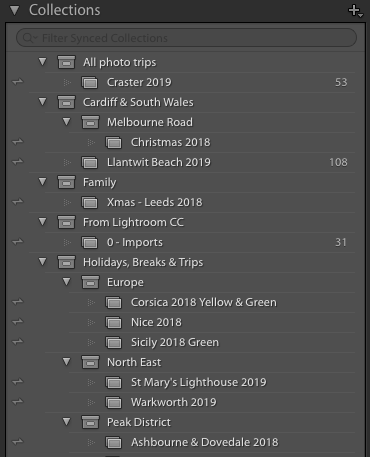
If you click on the two-way arrow which is against a Collection, then this Warning Message will appear …
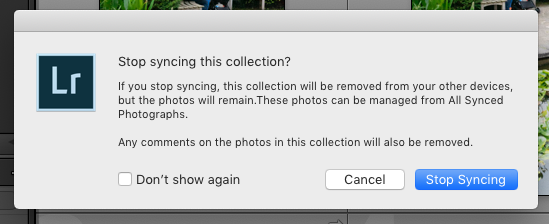
That looks a little scary, but as I’m not sharing photos from my Adobe CC storage, it shouldn’t worry me … yet! So I just click on Stop Syncing and the photos will be removed from the iPad. If I ever want to get them back into Lightroom CC on the iPad, I just click on the selection box next to the Collection and it will be synced back.
As an additional note (just for completeness). Should you have photos which were not in Albums (Lr CC) / Collections (Lr Classic), then you can Delete them from your iOS device by clicking-on More (…), clicking-on Select, selecting the images you want to delete from the device and clicking-on the Trash can. They will be deleted from all synced devices BUT NOT your Lightroom Classic device – phew!!
Another couple of useful articles on cleaning-out your Lightroom Collection are these from Rob Sylvan …
Managing Adobe Cloud Storage Space for Classic Users, and
Using Lightroom CC for Desktop as a Window to Cloud Storage.
He also write about similar Workflow issues in …
Tips for Syncing Lightroom Classic with Lightroom for Mobile. The tip to just see your Synced Collections is very useful.
Some observations as I go forward …
The positives
- All of my images in Albums were added into my Lightroom Classic catalog with all edits and rating synced, I just had to replicate the Album structure as Collections and all was copied across.
- Setting-up the iPad and getting the workflow sorted out was much easier than I’d imagined it would be.
- The weight of my luggage has dropped considerably and the number of cables I’ve had to take, plus hard disks has simplified travel a lot.
The negatives [Updated]
- [Updated] I decided NOT to invest in 1Tb of Adobe Cloud storage to enable syncing to take place between the iPad and the iMac. This was despite the perceived benefit of offsetting that cost against the cost of external hard-disks for travel, and the possible added benefit of a cloud back-up solution. I’ve previously investigated and even paid-for additional Google Drive storage for backup purposes but had cancelled it as the speed-up of the initial full back-up was so slow. With this solution I knew that you’re only really doing an incremental back-up from the initial date of using the service, unless you choose to sync all your Collections – which I wouldn’t be doing. The Adobe solution is more expensive, but it enables a workflow – that’s what I’ll be paying for. However … my experience of using Sync was not as good as I hoped it would be, so I was glad that I hadn’t purchased the additional storage because once I had, I’m sure I’d have been trapped into this workflow which has some disadvantages for me – see below.
- If you interfere with the syncing process you can get unpredictable outcomes. Stopping or starting Lightroom Classic, or the iPad mid-sync is not to be recommended.
- The album and folder structure within Lightroom CC will not sync over to Lightroom Classic, you have to do this as a manual drag and drop task.
- [Updated] You’re not able to change the name of the image file at Import which is a useful way of providing filename information to enable searches for an image outside of Lightroom.
- [Updated] You’re not able to Tag the Images at time of import – each one has to be tagged individually (and possibly collectively) after Import – but I haven’t investigated Presets for Lightroom Mobile so this might not be the case.
- [Updated] If you still intend to use Classic Import it means you have two different processes to remember which is a recipe for “cocking things up”.
Linking the Sony A7r III directly to Lightroom Mobile using WiFi
This is an addendum to the original post which I mentioned I might try to write as part of the Travelling with my iPad theme.
Well now I’ve tried it. The setup is reasonably straightforward and how to do that is shown in this video. The new Sony app – Imaging Edge Mobile must be installed on your mobile device (iPhone or iPad in my case); this replaces the earlier and rather strangely named Play Memories app – but the process of connection is the same. The app allows you to control the functions of your camera and take shots remotely (tethering) and they are then downloaded directly to your Camera Roll, from which you can apply a Shortcut (see below) which imports a JPEG representation into Lightroom – but not a RAW image.
It has to be said the process from that point onwards – to upload the file to Creative Cloud is painfully slow in the iPad, and sufficient to say I will not be using this as part of my Workflow. I will rely on my SD-Card to Lightning connector cable to import images onto the iPad, and not WiFi, as doing it this way there does not seem to be so much delay in the sync to Creative Cloud afterwards.
I might be doing something wrong, but as there is an easy and “trusted” way of doing the Import – a cable … I’ll stick to that but will come back at a later date to see if things have changed any!
Some more articles that might be worth looking at if you’re thinking going down this route:
A rather negative review of the iPad Pro (2018) which I think misses the point if you’re just considering using the device for travelling. It praises the processing power but lambasts the device for not being able to use external storage, and for it relying on iOS but it misses the obvious point that it’s a self-contained device that you wouldn’t want to add additional storage too, because you’d be using Adobe’s Cloud offering anyway. The writer would also have not had any issues with their import workflow if they’d read Nicole’s excellent article with the rather nifty use of Shortcuts added. Still, it’s worth the read and provides some food for thought.
Another rather more positive review again points out that having a USB-C port should enable Apple to connect an external disk to the iPad Pro for backup storage and thinking that this might be announced in a future release of iOS. The author does suggest an alternative which would be to copy a backup to a wireless external hard-drive. Nicole does something similar – the backup of files to a separate travel hard-drive which has an integral SD-slot. I’ve thought of that before now, but I don’t think it’s necessary for me at the moment as I’m using the second-slot in the Sony A7rIII to back-up the primary (fast) slot. It’s also not an SSD solution so any benefits “in the field” would be lost “at the desktop”. So I’ll stick with what I’ve got and wait for iOS to evolve, which will happen as Apple brings MacOS and iOS closer together.
Using Shortcuts app to import Images to Lightroom CC and then delete them from Photos Library on iPad
In a recent Lightroom CC mobile update for iOS (version 4.1.1) Adobe added the ability to use the Shortcuts app to create a shortcut that runs a script to do everything above, including the deletion of the photos from the iPad (but not from Lightroom CC).
To learn more about how this works I suggest you watch Brian Matiash’s tutorial on how to set this up, and you can also read Matthew Cassinelli’s article about it here.
How to use the Shortcuts iOS app to import photos taken with your iPhone/iPad to Lightroom CC and delete them from the Camera Roll.
[NB Don’t try and start the Shortcuts app before you’ve done the Import to the Photos Library. The script says “Get last import”, not “Import from Card to Photos” – obvious I know, but in a hurry, you could forget.]
If you employ the use of Apple’s Shortcuts app then you can selectively import the images that you might have taken on an iPhone that’s got iCloud Photos switched ON into Lightroom Mobile. This is a very good idea for incorporating your iPhone images into the Workflow described above, and works a dream! I’ve named my Shortcut on the iPad – Camera Roll to Lightroom and it uses the Select Photos with Select Multiple, followed by Import to Lightroom.
Other refs.
Sync Lightroom Classic with Lightroom CC Ecosystem – Adobe
Sync Lightroom Classic with Lightroom ecosystem – Adobe
Access Lightroom’s Capture app on iOS – Adobe
